Export Data from ActiveCampaign for Bento
Step-by-step guide for exporting contacts, tags, segments, and custom fields from ActiveCampaign for import into Bento.
This guide walks you through exporting the contacts, tags, segments, and supporting context you need from ActiveCampaign before migrating to Bento.
Prerequisites
- Admin access to your ActiveCampaign account
- Permission to export data for every list
- Somewhere to store CSV exports (local folder or shared drive)
- Optional: spreadsheet software for cleanup (Sheets, Excel, Numbers)
What you will export
- Active contacts (everyone you email today)
- Suppressed contacts (unsubscribed + bounced)
- Tags (for segmentation logic)
- Segments / saved searches
- Custom fields tied to each contact
- Automations & forms for reference screenshots
Step 1
Log in to ActiveCampaign
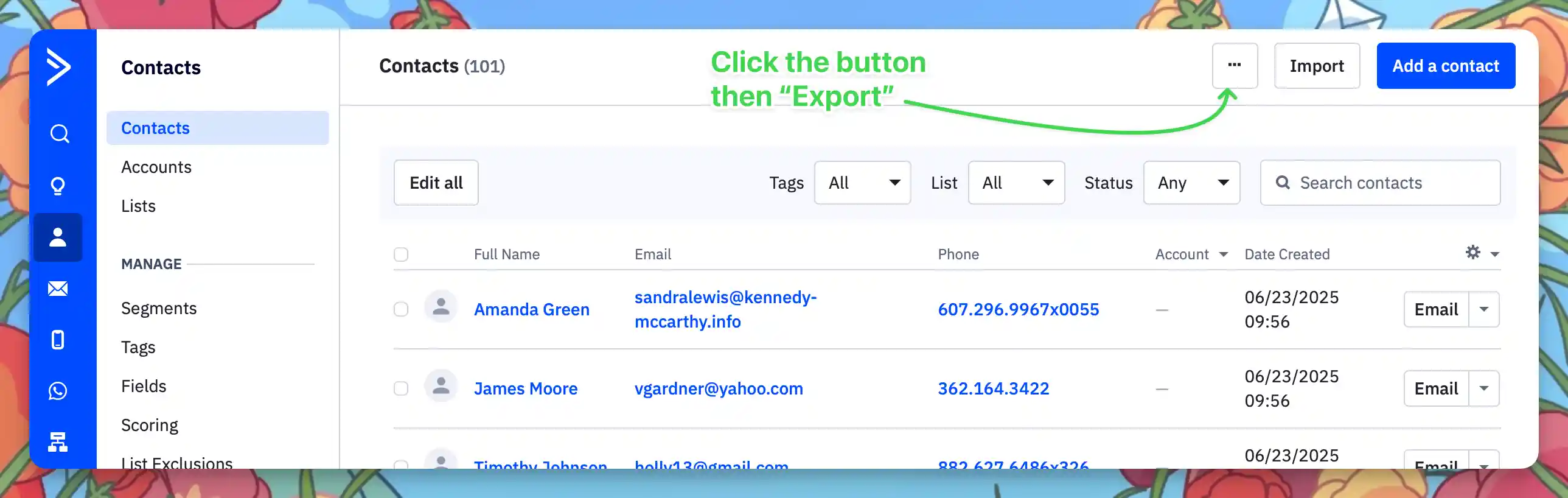
Head to activecampaign.com/login and sign in. From the sidebar, open Contacts to work from the primary list view.
Step 2
Export active contacts
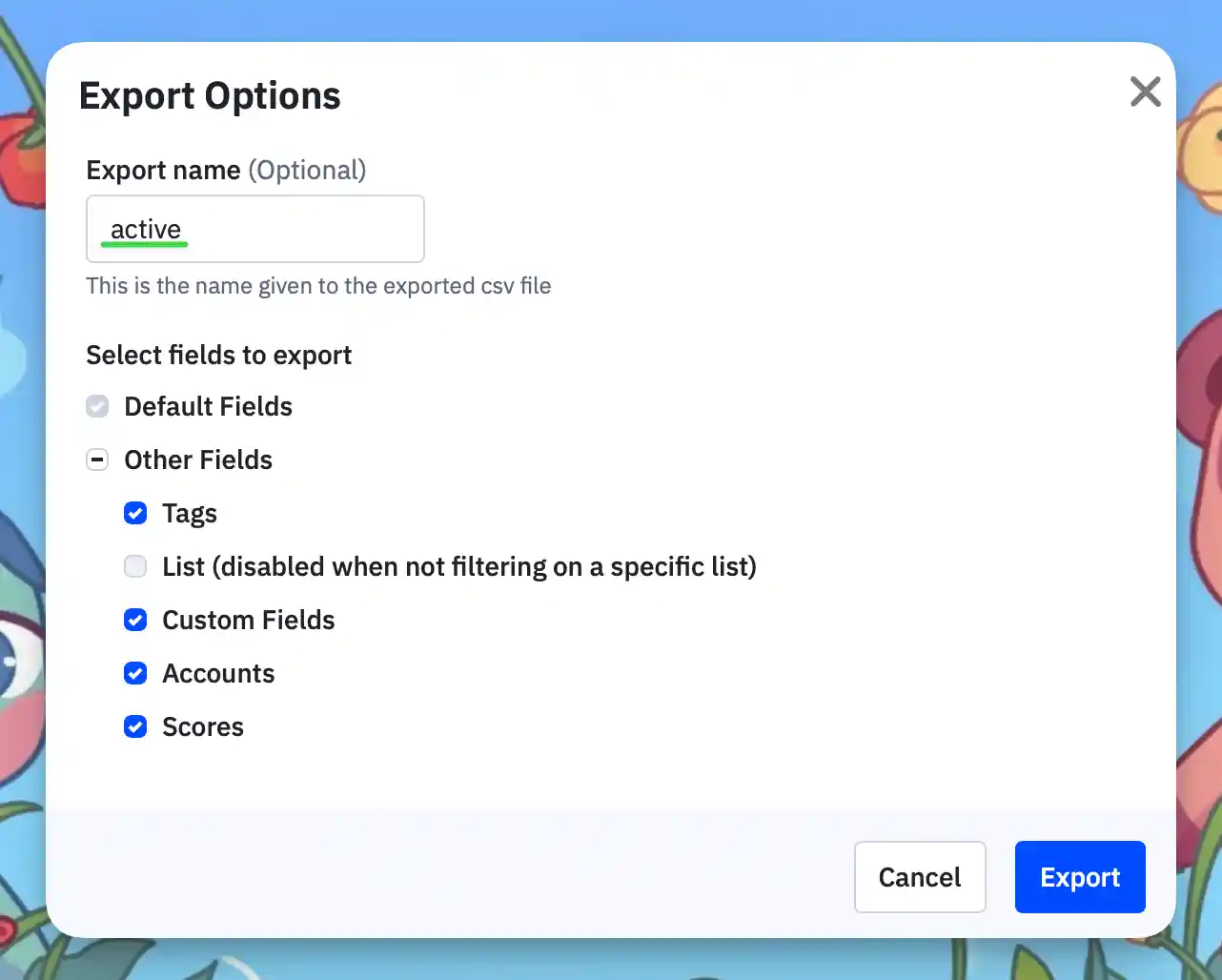
In Contacts, click the … menu in the upper-right corner and choose Export. Name the file something like active.csv, select every available field, and begin the export. ActiveCampaign emails you a download link when it finishes processing.
Step 3
Export unsubscribed & bounced contacts
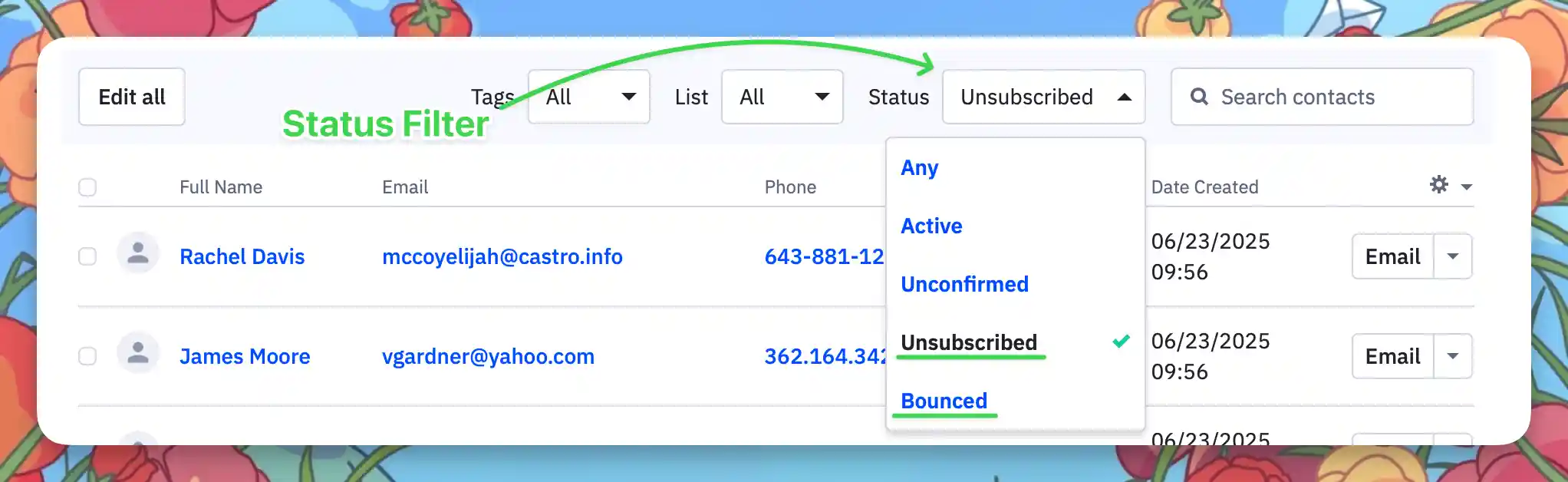
Still in Contacts, change the Status filter to Unsubscribed, then repeat the export process (name the file unsubscribed.csv). Switch the filter to Bounced and export again if you have bounces.
Step 4
Document your tags
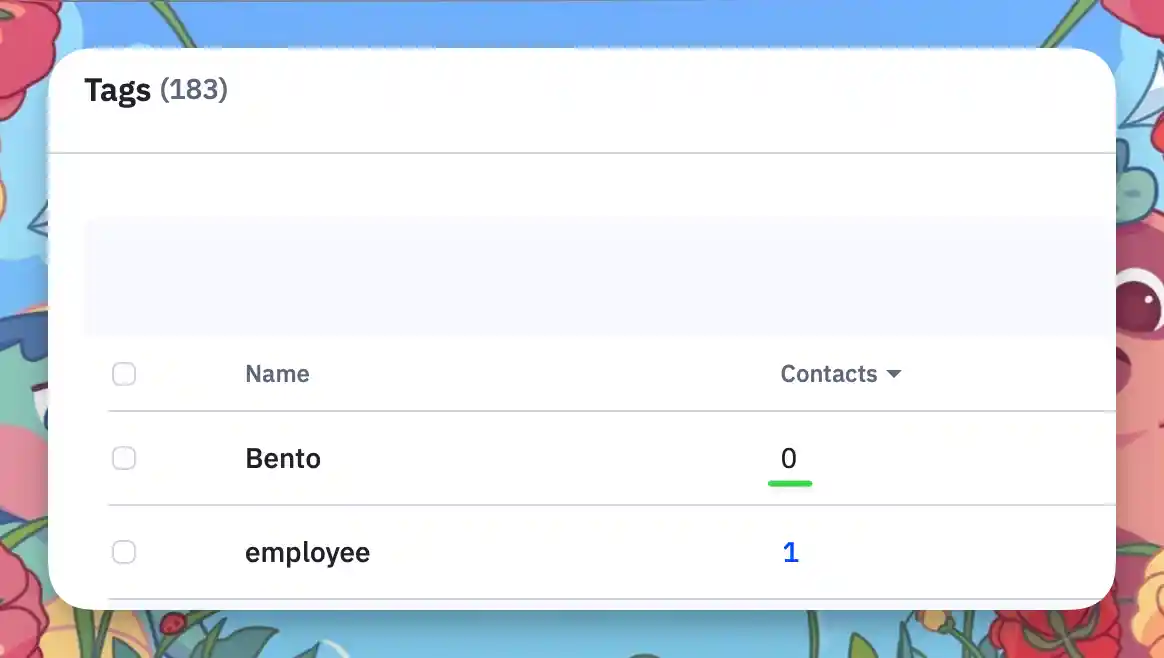
Tags applied to a contact ship inside the CSV. Make a note of any unused tags you still rely on so you can recreate them in Bento.
Step 5
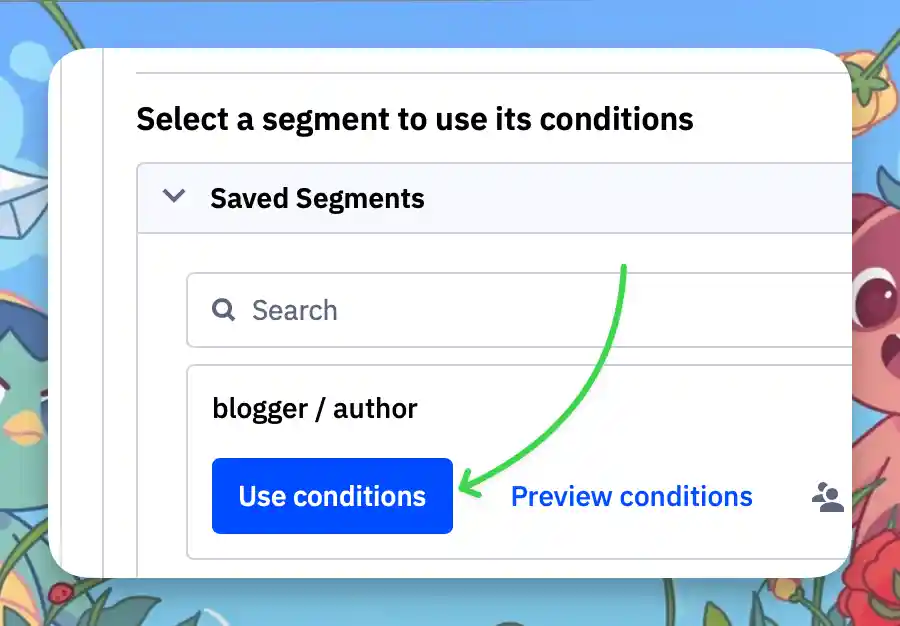
Export saved segments
Open Advanced Search, load each saved segment, and export the results. Name the files after the segment so you can map them later.
Step 6
Confirm custom fields
Custom fields ride along with the contact export. Open the CSV and verify every column you expect is present. If something is missing, expose the column inside ActiveCampaign and run the export again.
Custom fields do not need separate exports—just confirm the columns exist before moving on.
Step 7
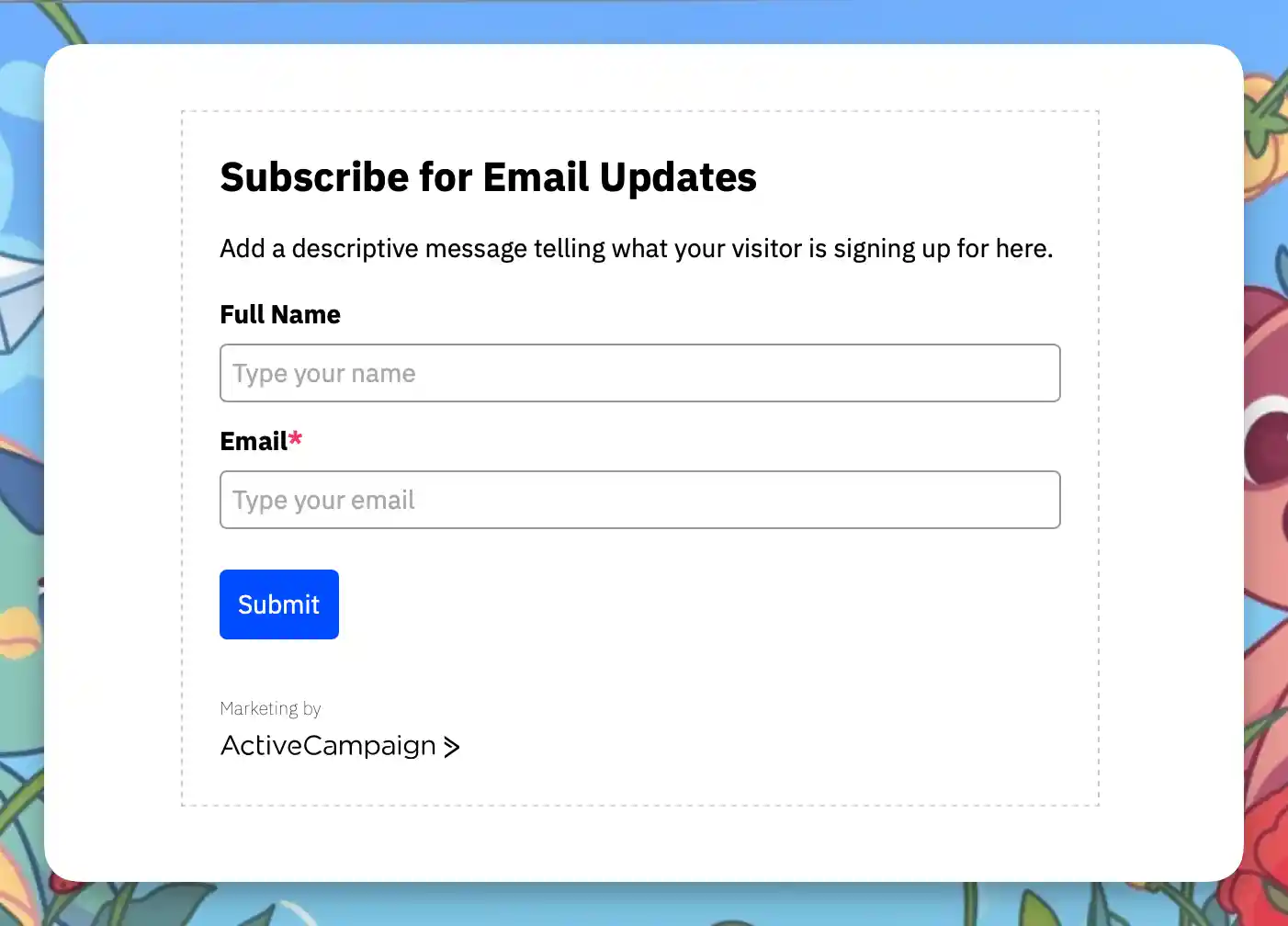
Capture forms (optional)
Navigate to Site → Forms and take screenshots or export HTML for any forms you need to rebuild in Bento.
Step 8
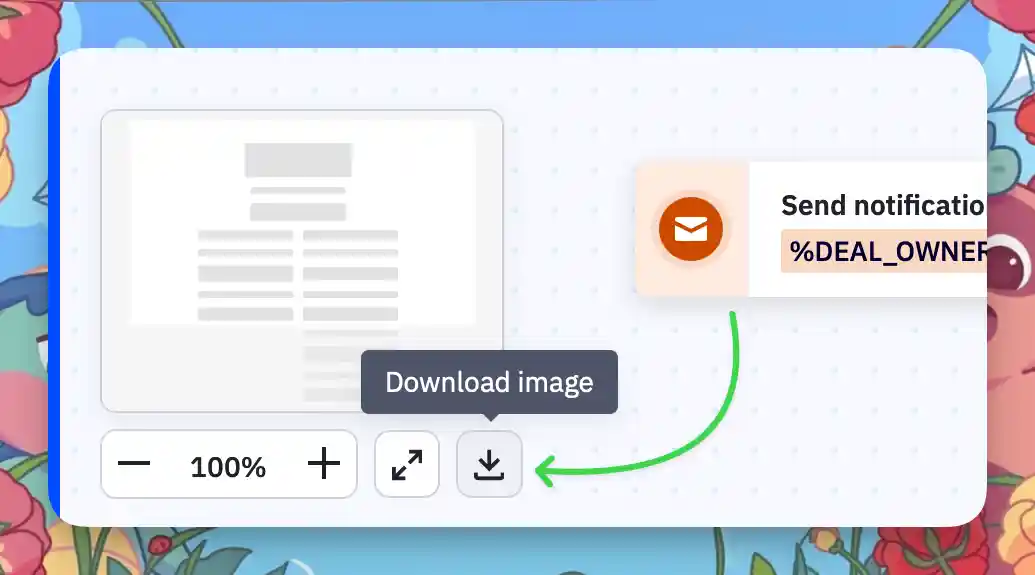
Document automations (optional)
Open Automations, capture screenshots of each flow, and note critical triggers or wait conditions. Bento Flows will use those references during rebuild.
Merge & Clean Your CSVs
- Open every export in your spreadsheet tool.
- Rename columns to Bento-friendly names (
email,first_name,tags, etc.) so imports map cleanly. - Combine multiple tags into comma-separated lists (
vip,customer). - Remove blank, duplicate, or irrelevant columns.
- Save each CSV independently—active, unsubscribed, bounced, and any segments.
Column Map Example
| Tags | Remove Tags | First Name | Last Name | |
|---|---|---|---|---|
| jesse@bentonow.com | customer, mql | lead | Jesse | Hanley |
After Exporting
- Verify every required CSV exists (active, unsubscribed, bounced, segments).
- Make sure tags and custom fields look correct before moving on.
- File screenshots and documentation for automations in a shared folder.
Troubleshooting
Missing data?
- Confirm you exported from the correct section (Contacts, Segments, Lists).
- Check your downloads folder—exports arrive via email links.
- Open the CSV in a spreadsheet to confirm columns are populated.
- Very large lists (100k+) may arrive in multiple parts. Download and merge all of them.
Export button missing?
- Ensure your user role has export permissions.
- Try another browser or clear cached data.
- If the menu stays disabled, contact ActiveCampaign support to enable exports.
ActiveCampaign → Bento Terminology
| ActiveCampaign Term | Bento Term | What It Means |
|---|---|---|
| Contact | Person | A human with an email address |
| List | — | Bento uses one people table—segment instead of siloed lists |
| Tag | Tag | Labels for categorisation and segmentation |
| Segment / Saved search | Segment | Dynamic groupings based on rules |
| Custom field | Field | Additional attributes stored on a person |
| Campaign | Broadcast | One-off email to a specific audience |
| Automation | Flow | Triggered sequences with delays, branching, and conditions |
| Goal | Event + Flow logic | Construct events and flow conditions to advance subscribers |
| Site / Event tracking | Event | Bento records events directly for segmentation and automation |
| Personalisation tag | Liquid | Dynamic content rendered with Bento's Liquid templating |
Automation & tracking notes
Final Checks
- Take reference screenshots before changing anything.
- Test imports with your own email first.
- Keep ActiveCampaign live until Bento shows the same tags, segments, automations, and suppression lists.
- Document what you change so future teammates understand the migration story.
Time estimate
Quick Reference
During migration
- Monitor Bento dashboards after each import.
- Check deliverability metrics to confirm everything is healthy.
- Test forms, automations, and broadcasts end-to-end.
Before cancelling ActiveCampaign
- Confirm all contacts (active + suppressed) are in Bento.
- Rebuild core automations inside Bento Flows.
- Warm up the list with smaller broadcasts.
- Validate every capture point (forms, integrations, webhooks).
Need help?
- Ask questions in the Bento Discord.
- Email support@bentonow.com for import troubleshooting.
- Monitor status.bentonow.com for platform updates.
You have everything you need—ship it. If anything breaks, you still have the original exports ready to re-import.
Need the original Markdown? Open raw file