Export Data from ConvertKit for Bento
Step-by-step export checklist for moving subscribers, tags, segments, and automations from ConvertKit into Bento.
This guide keeps your ConvertKit export clean so you can migrate subscribers, tags, and automations into Bento without losing context.
Prerequisites
- Admin access to your ConvertKit account
- Permission to export subscriber data
- Folder or shared drive ready for multiple CSV exports
- Spreadsheet software (Google Sheets, Excel, Numbers) for cleanup
What you'll export
- Confirmed subscribers (your active list)
- Suppression sets (cancelled, bounced, complained, cold)
- Tags & segments that drive automation logic
- Custom fields embedded in the subscriber CSV
- Automation references (screenshots/notes)
Step 1
Open Subscribers view
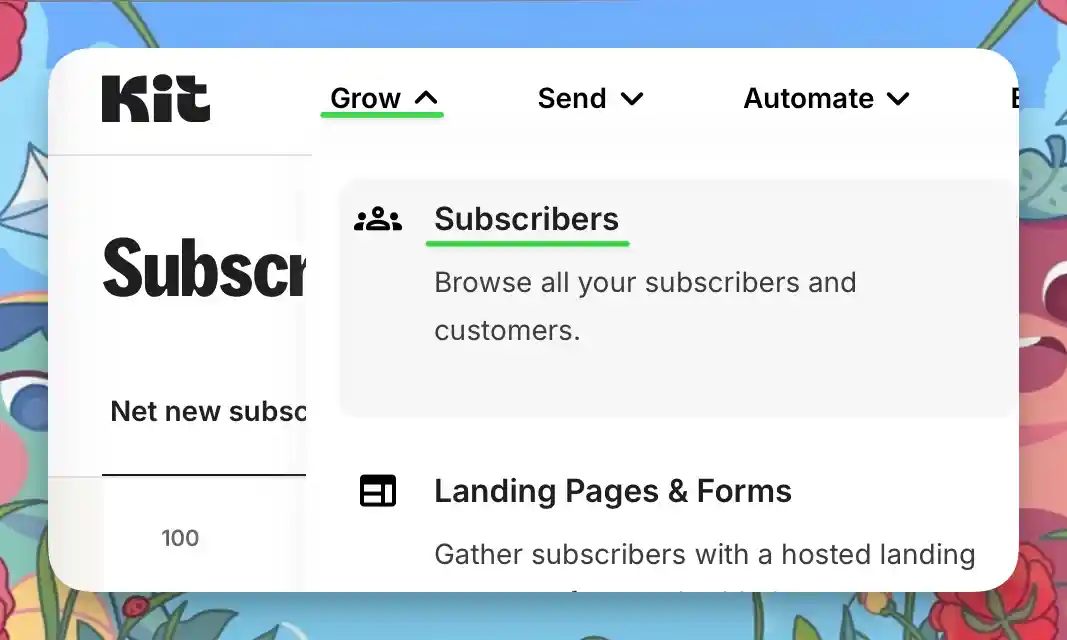
Sign in at app.convertkit.com, then go to Grow → Subscribers. This is the hub for every export you need.
Step 2
Export confirmed subscribers
- Under Lifetime Totals choose
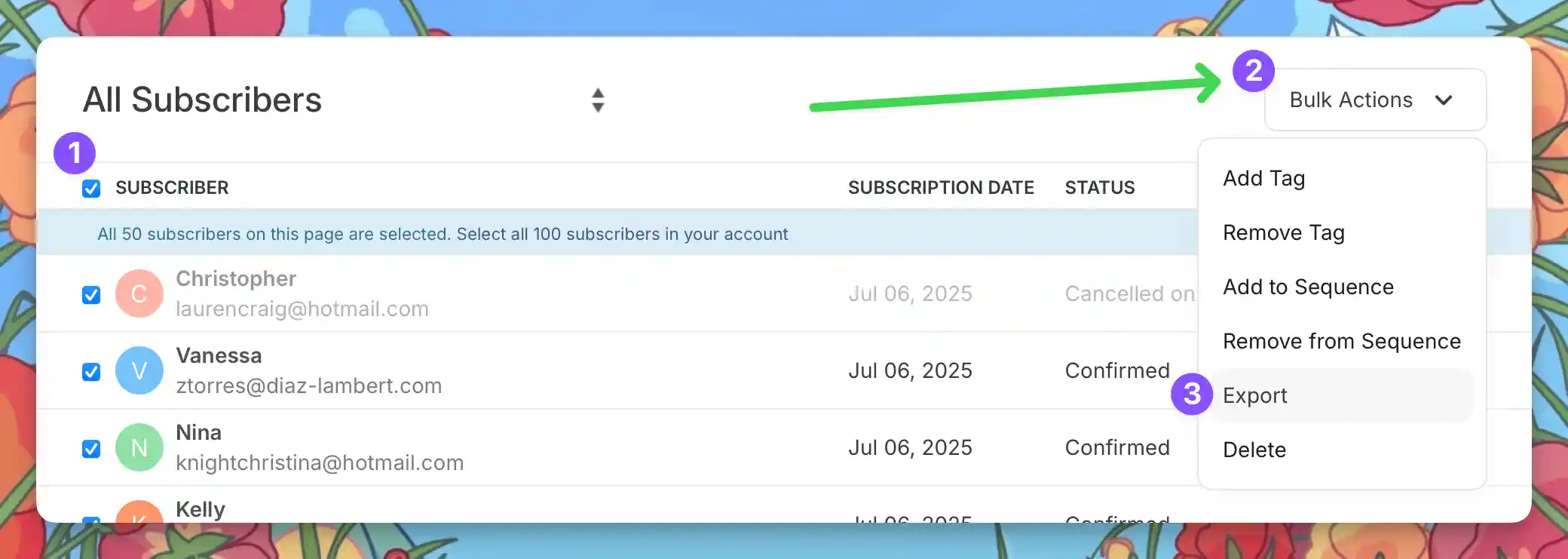
Confirmed Subscribers. - Select the checkbox beside Subscriber, then use Bulk Actions → Export.
- Watch for the email download link and save it as
confirmed-subscribers.csv.

Step 3
Export suppression lists
- Repeat the export for Cancelled, Complained, Bounced, and Cold subscriber types.
- Rename each CSV as you download it (for example
bounced.csv) so you can import them into Bento suppression lists later.
Step 4
Review tags
Tags that exist on at least one subscriber are included in the CSV exports. Make a note of unused tags you still care about—they will not appear and must be recreated manually in Bento.
Step 5
Snapshot segments
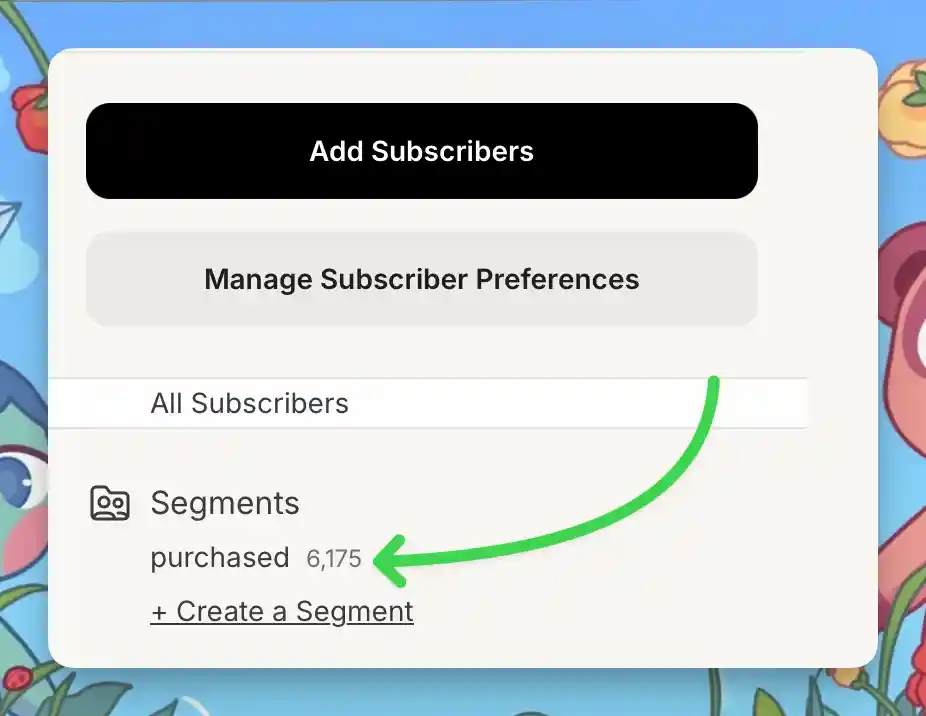
Beneath the Add Subscriber buttons, open each segment with subscribers and use the export option. These CSVs act as a snapshot so you can rebuild logic in Bento using tags, liquid conditions, or flows.
Step 6
Verify custom fields
Custom fields are already embedded in the subscriber CSV. Open the file and confirm every expected column is present. If something is missing, expose the column in ConvertKit and re-run the export.
No screenshots needed—just sanity-check the CSV headers before you move on.
Merge & Clean Your CSVs
- Open every CSV in your spreadsheet tool.
- Standardise column names so Bento recognises them (
email,first_name,tags, etc.). - Combine multiple tags into comma-separated strings (
vip,customer). - Remove duplicates, blank rows, and unused columns.
- Save each CSV independently (confirmed, bounced, unsubscribed, segments).
Column map example
| Tags | Remove Tags | First Name | Last Name | |
|---|---|---|---|---|
| jesse@bentonow.com | customer, mql | lead | Jesse | Hanley |
After Exporting
- Confirm you have CSVs for confirmed, suppression, and any critical segments.
- Store automation screenshots or notes alongside the exports.
- Rename files clearly so you can map each one to its Bento import step.
Troubleshooting
Missing data?
- Make sure you exported from the correct view (Subscribers, Tags, Segments).
- Check spam/promotions if the export email is missing after 10 minutes.
- Open each CSV to confirm custom fields and tag columns populated correctly.
- Very large lists arrive as multiple CSVs—download every part and document the naming scheme.
Export button disabled?
- Verify your user role has export permissions.
- Try a different browser or clear cached data.
- Reach out to ConvertKit support if access remains blocked.
ConvertKit → Bento terminology
| ConvertKit term | Bento equivalent | What it means |
|---|---|---|
| Subscriber | Person | A contact record with full activity history |
| List | — | Bento uses a single People table—segment with tags, events, or flows instead |
| Tag | Tag | Labels for segmentation and automation triggers |
| Segment | Segment | Dynamic grouping based on rules |
| Custom field | Field | Additional attributes stored on a person |
| Broadcast | Broadcast | One-off email to a defined audience |
| Sequence | Sequence | Linear autoresponder, often rebuilt as a Bento Flow |
| Visual automation | Flow | Branching automation with triggers, waits, and conditions |
| Link trigger | Event + Flow | Bento tracks clicks automatically; trigger flows from events instead |
| Liquid | Liquid | Same templating language—helpers shift slightly |
Automation coverage
Final checklist
- Screenshot important automations before you change anything.
- Test the import with your own email address first.
- Keep ConvertKit running until Bento replicates your tags, segments, and flows.
- Document each import so teammates understand what changed.
Time expectation
Quick reference
During migration
- Monitor Bento dashboards after each import.
- Validate deliverability metrics.
- Test forms, landing pages, and automations end-to-end.
Before cancelling ConvertKit
- Confirm all subscribers (active + suppressed) exist in Bento.
- Rebuild sequences and automations as Bento Flows.
- Warm the list with smaller broadcasts.
- Verify every capture point and integration.
Need help?
- Ask in the Bento Discord.
- Email support@bentonow.com for import troubleshooting.
- Track platform status at status.bentonow.com.
You’re ready to ship. Keep the original exports archived so you can re-import at any time.
Need the original Markdown? Open raw file