Export Data from Drip for Bento
Step-by-step checklist for exporting people, tags, and workflows from Drip before importing into Bento.
This guide covers everything you need to pull out of Drip—people, tags, segments, and workflow references—so the migration to Bento is predictable.
Prerequisites
- Access to the Drip account with export permissions
- Location to store multiple CSV files (local folder or shared drive)
- Spreadsheet software for cleanup (Sheets, Excel, Numbers)
What you'll export
- Subscribed people (active list)
- Suppressed people (unsubscribed + undeliverable)
- Tags (captured in the CSV)
- Segments / saved filters
- Workflow references (screenshots or notes)
Step 1
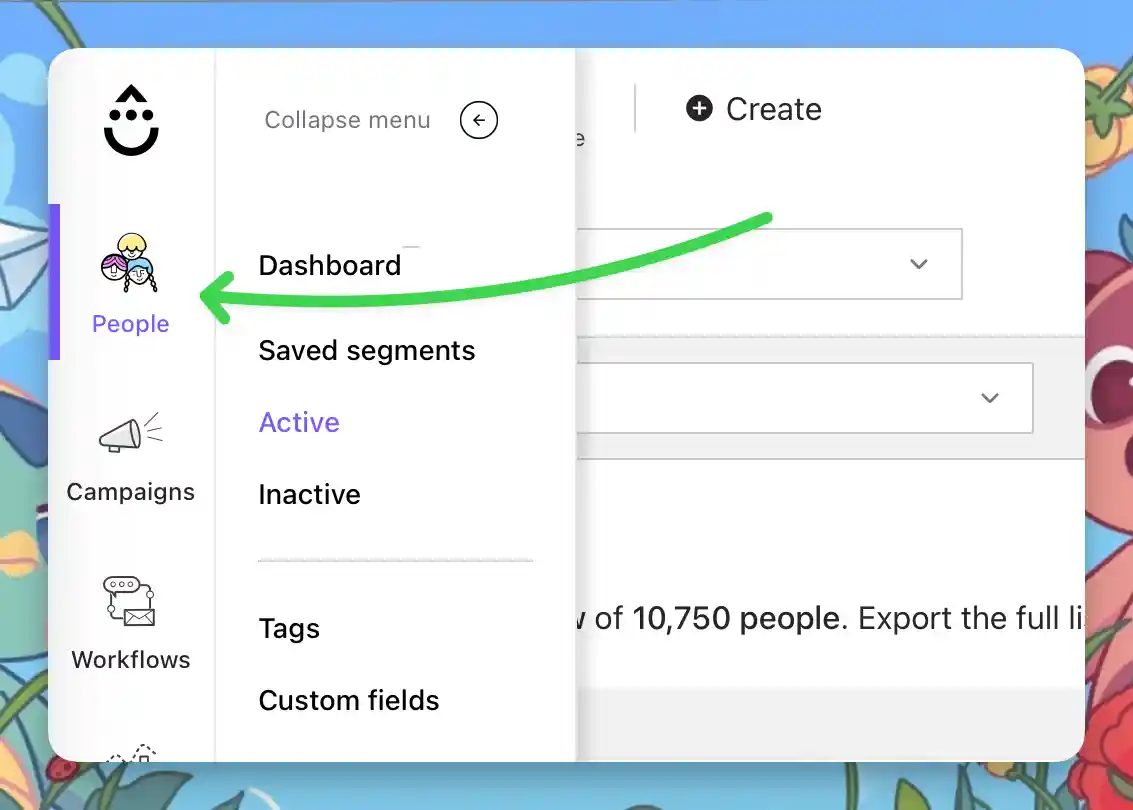
Open People
Sign in at drip.com/signin, then select People. Every export starts from this view.
Step 2
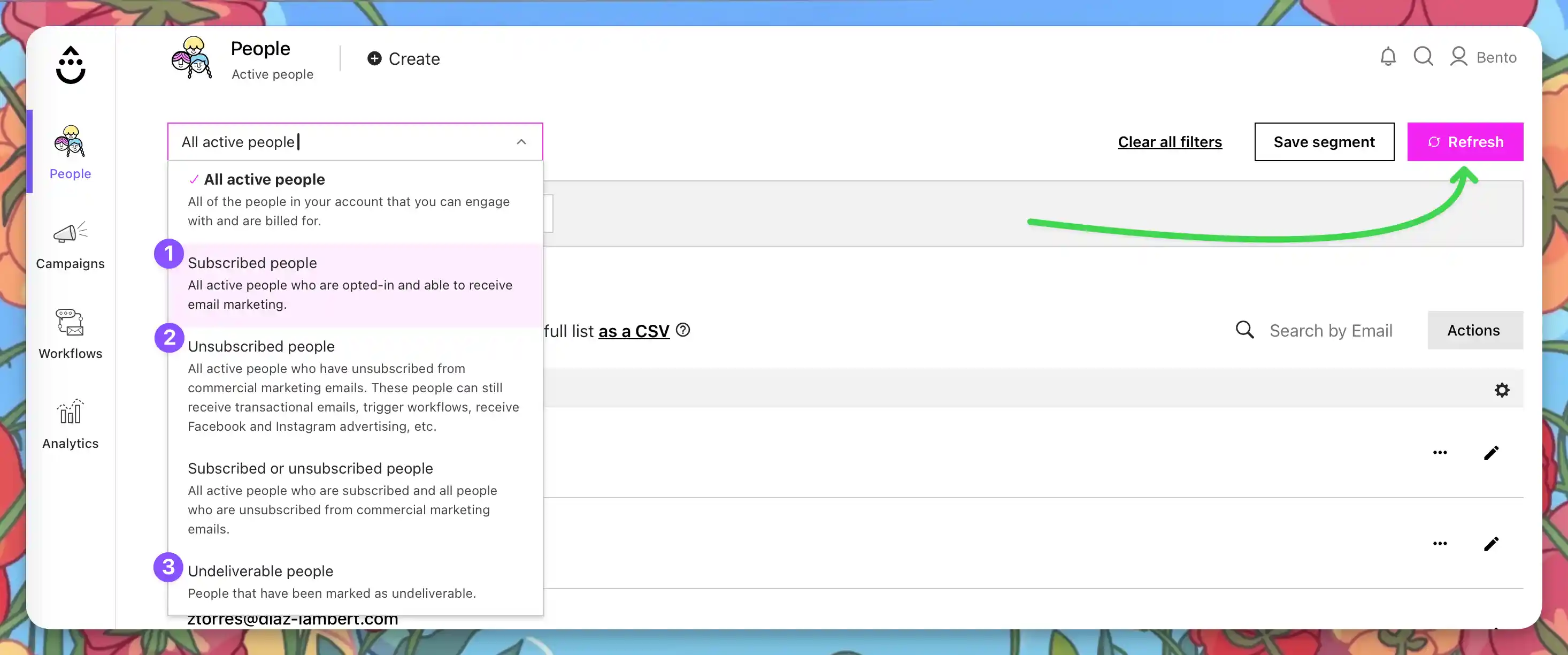
Export subscribed, unsubscribed, and undeliverable people
- Use the Filter dropdown to select a contact type (for example
Subscribed). - Click Refresh, then choose Export as CSV.
- Repeat for
UnsubscribedandUndeliverablepeople.

Step 3
Review tags
Tags are embedded inside the CSV exports. Open each file to verify the tags column populated correctly.
No extra export is required—note any tag cleanup you plan before import.
Step 4
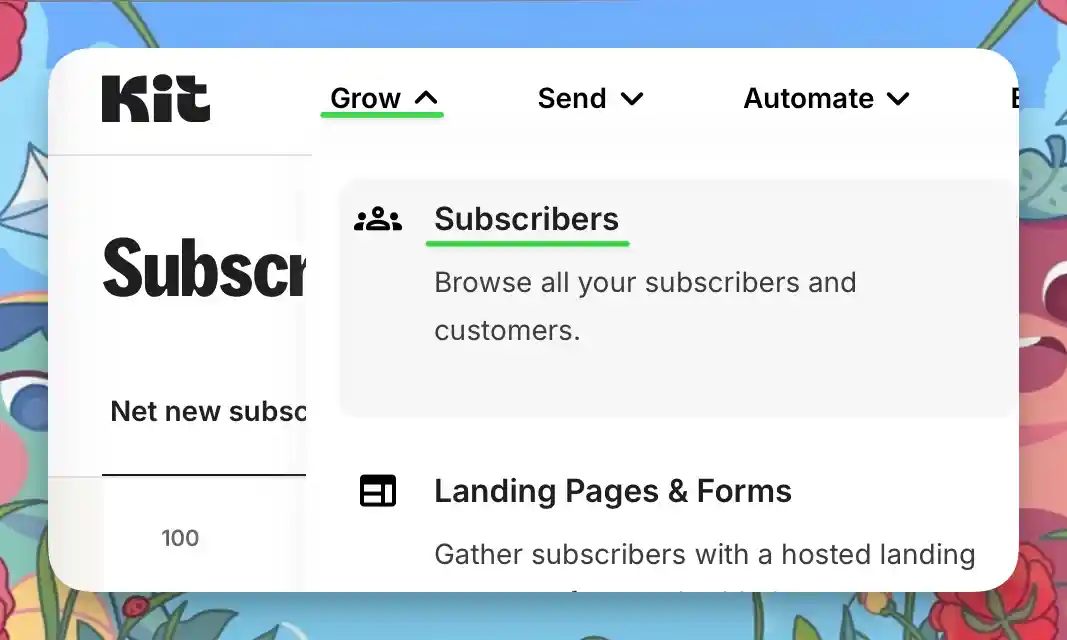
Snapshot segments
Export any saved filters or segments you rely on. Use the same Filter controls, refresh, and click Export as CSV.
Step 5
Confirm custom fields
Custom fields live in the exported CSV. Double-check column headers before moving on.
No additional download is needed—review the CSV itself.
Step 6
Capture workflows
Drip cannot export workflows directly. Take screenshots or document key steps so you can recreate them in Bento Flows.
Screenshot triggers, waits, and branching logic—future you will thank you.
Merge & Clean Your CSVs
- Open each CSV in your spreadsheet tool.
- Rename columns to Bento-friendly names (
email,first_name,tags, etc.). - Comma-separate multiple tags (for example
vip,customer). - Remove blanks, duplicates, and unnecessary columns.
- Tag your unsubscribed and undeliverable CSVs if you want to track them separately post-import.
- Save every CSV with a clear name (for example
drip-subscribed.csv,drip-unsubscribed.csv).
Column map example
| Tags | Remove Tags | First Name | Last Name | |
|---|---|---|---|---|
| jesse@bentonow.com | customer, mql | lead | Jesse | Hanley |
After Exporting
- Verify you have CSVs for subscribed, unsubscribed, and undeliverable people.
- Organise segment CSVs and automation screenshots in the same folder.
- Plan a small test import first to validate mappings.
Troubleshooting
Missing data?
- Ensure you filtered the correct group before exporting.
- Check your downloads folder and export history if the email hasn’t arrived.
- For lists over 100k contacts, Drip may split files—download each part and combine them.
Export link missing?
- Confirm your user role has export permissions.
- Try another browser or clear cache.
- Contact Drip support if export controls stay disabled.
Drip → Bento terminology
| Drip term | Bento equivalent | What it means |
|---|---|---|
| Person | Person | A full contact record with behavioural history |
| Tag | Tag | Labels for segmentation and automation triggers |
| Segment / Filter | Segment | Dynamic grouping based on rules |
| Custom field | Field | Additional attributes stored on a person |
| Campaign | Broadcast | One-off email to a defined audience |
| Workflow | Flow | Automation logic with triggers, delays, and branching |
| Event tracking | Event | Bento tracks visits and clicks natively; no link triggers required |
| Liquid | Liquid | Same templating language with slightly different helper functions |
Automation coverage
Final checklist
- Screenshot workflows before you edit anything.
- Import a small batch into Bento to confirm field mappings.
- Keep Drip active until Bento mirrors your automations, tags, and suppression lists.
- Document each import for teammates and future audits.
Time expectation
Quick reference
During migration
- Watch Bento dashboards after each import.
- Check deliverability metrics and inbox placement.
- Test forms, automation triggers, and segmentation.
Before cancelling Drip
- Confirm all people (active + suppressed) live in Bento.
- Rebuild workflows using Bento Flows.
- Warm the list with smaller broadcasts.
- Validate every form and integration path.
Need help?
- Ask in the Bento Discord.
- Email support@bentonow.com for import assistance.
- Monitor status.bentonow.com for platform updates.
You’re ready to ship. Keep the original exports archived so you can re-import at any time.
Need the original Markdown? Open raw file