Export Data from Klaviyo for Bento
Export subscribers, suppression lists, and segment snapshots from Klaviyo so you can import them cleanly into Bento.
This guide walks you through exporting Klaviyo data so Bento receives the right subscribers, suppression lists, and context.
Prerequisites
- Klaviyo account access with export permissions
- Folders ready to store multiple CSVs
- Spreadsheet tool for quick cleanup (Sheets, Excel, Numbers)
What you will export
- Subscribers (profiles who can receive marketing)
- Suppressed profiles (cannot receive marketing)
- Tag/segment membership via CSV columns
- Flow references (screenshots/notes)
Step 1
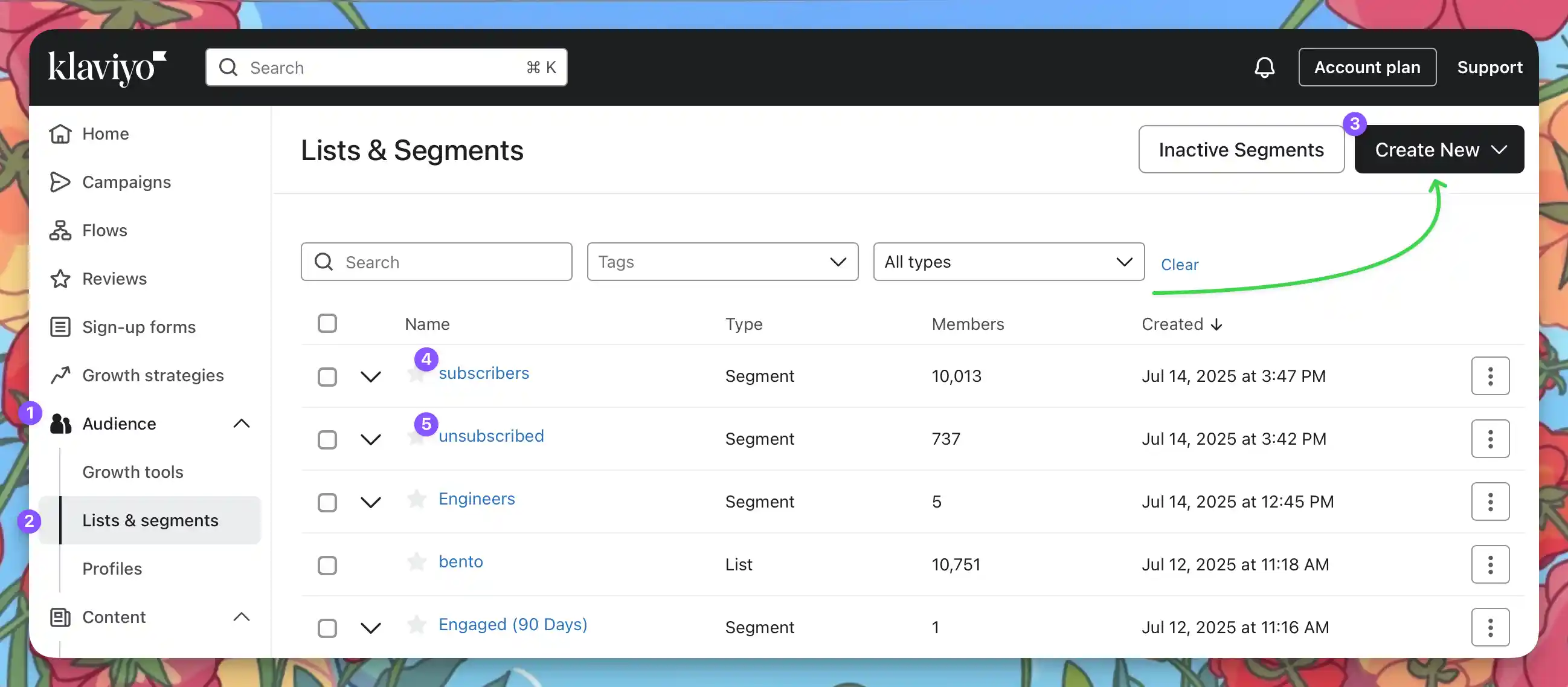
Open Lists & Segments
Log in at klaviyo.com/login, then navigate to Audience → Lists & Segments.
Step 2
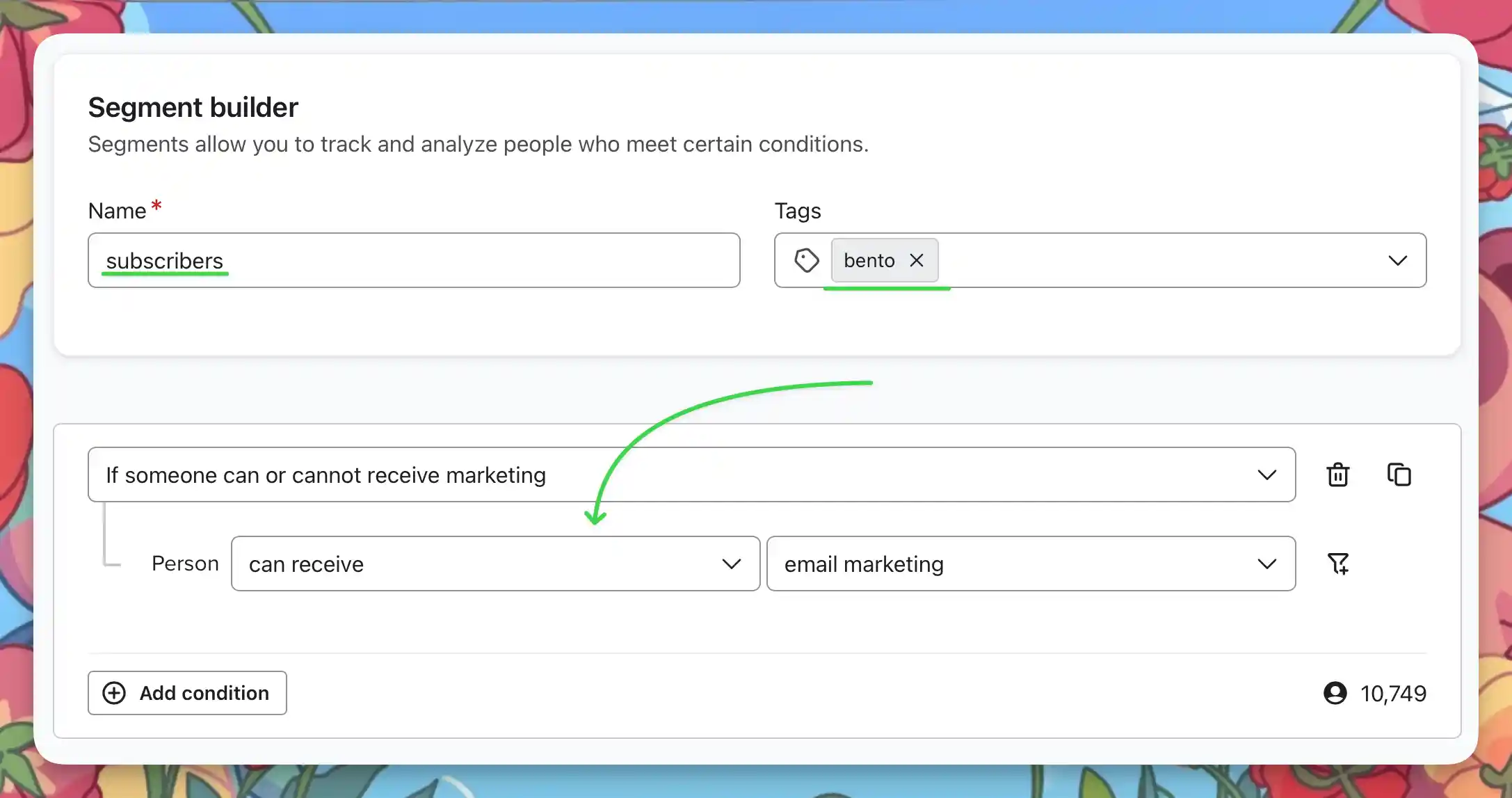
Build subscriber and unsubscribed segments
Create a segment for subscribers using Person → Can receive → Email marketing and a second for suppressed contacts using Person → Cannot receive → Email marketing. Name them clearly (for example Subscribers and Unsubscribed).
Step 3
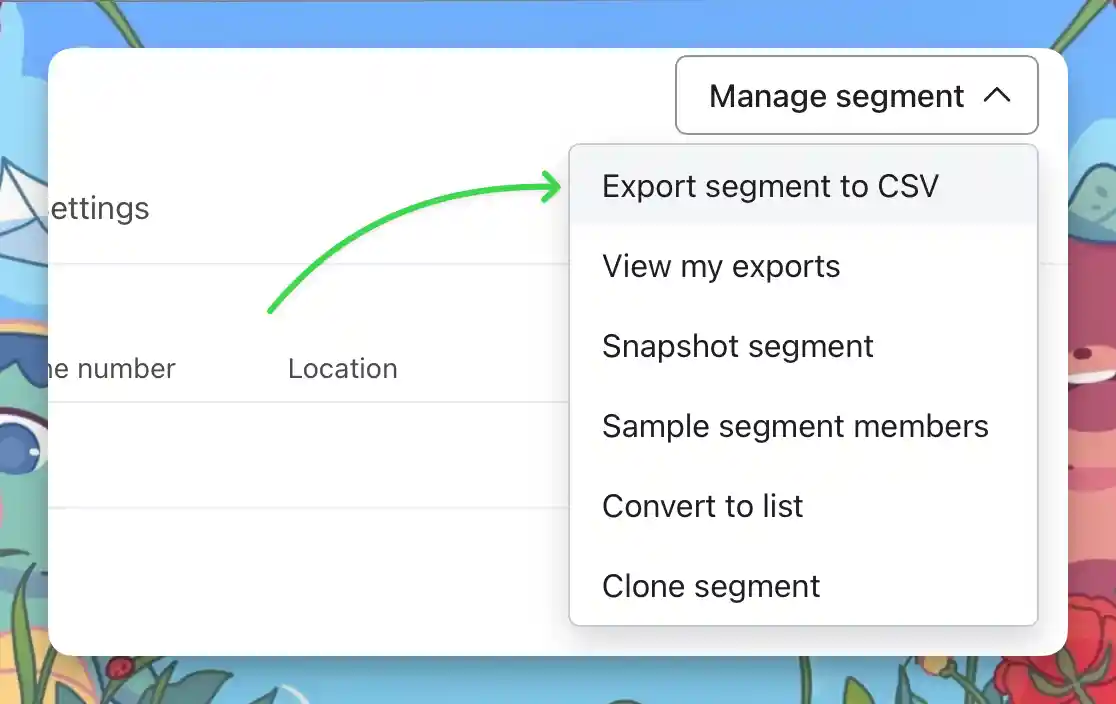
Export the segments
Open a segment and choose Manage Segment → Export Segment to CSV. Klaviyo queues the export and emails you when it is ready.
Step 4
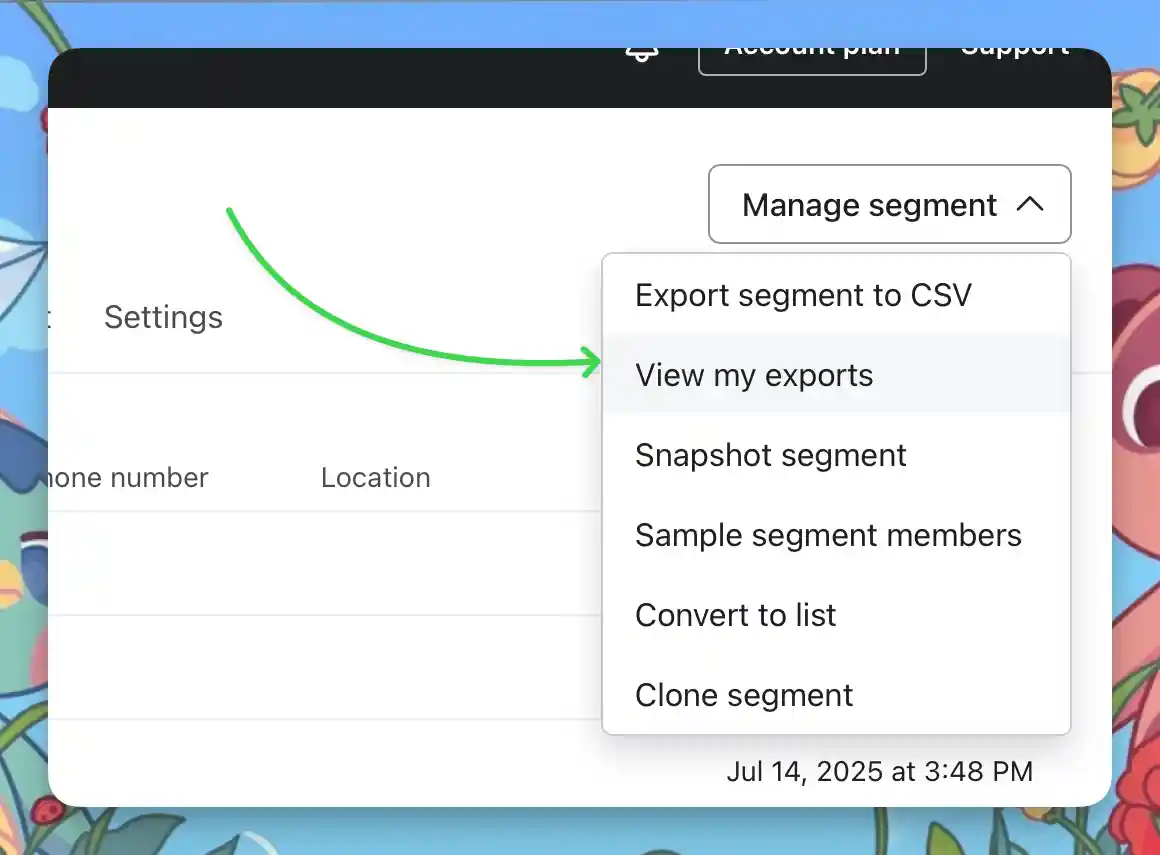
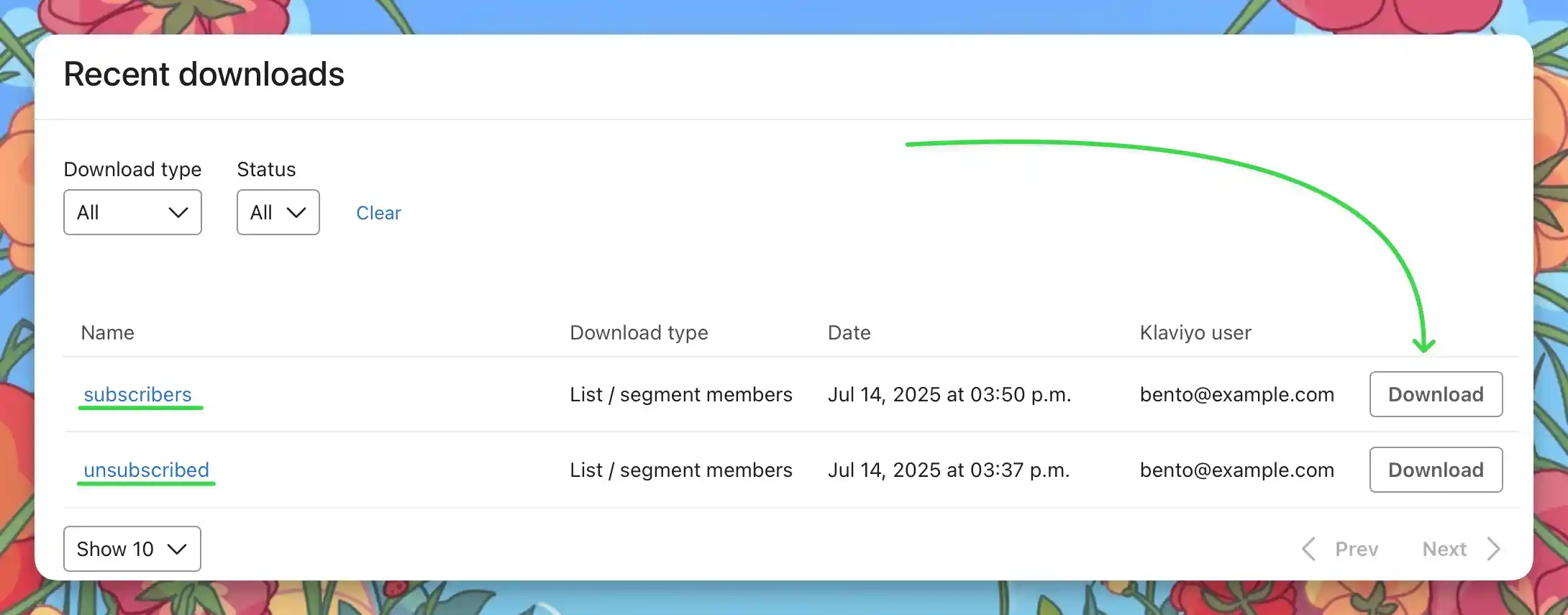
Download the files
- Go to Account → Settings → Downloads to access completed exports.
- Download each CSV and rename it (for example
klaviyo-subscribers.csv,klaviyo-unsubscribed.csv).
Step 5
Capture custom properties and flows
Custom properties live inside the exported CSVs. Take screenshots or notes of key flows—they will need to be rebuilt in Bento.
No additional export is required here—just document the flows you plan to recreate.
Merge & Clean
- Open each CSV in your spreadsheet tool.
- Rename headers to Bento-friendly names (
email,first_name,tags, etc.). - Comma-separate multiple tags without spaces (
customer,vip). - Remove unused columns and blank rows.
- Save each CSV separately (subscribers, unsubscribed, tag-specific segments).
Column map example
| Tags | Remove Tags | First Name | Last Name | |
|---|---|---|---|---|
| jesse@bentonow.com | customer, mql | lead | Jesse | Hanley |
After exporting
- Confirm you have subscriber and unsubscribed CSVs at minimum.
- Label any additional segments clearly so you know where to import them in Bento.
- Store automation screenshots with the CSVs for easy reference.
Troubleshooting
Missing data?
- Ensure the segment contains the audience you expect before exporting.
- Check email/spam folders for the export link.
- Large exports may generate multiple CSVs—download every part.
Cannot export?
- Owner, Admin, or Analyst permissions are required to export.
- Try another browser or clear cached data.
- Contact Klaviyo support if export buttons stay disabled.
Klaviyo → Bento terminology
| Klaviyo term | Bento equivalent | What it means |
|---|---|---|
| Profile | Person | A contact with behavioural history |
| Tag / Property | Tag | Labels to drive segmentation and flows |
| Segment | Segment | Dynamic grouping rules |
| Custom property | Field | Additional data columns stored on the person |
| Campaign | Broadcast | One-off email send |
| Flow | Flow | Automation with triggers, waits, and branching logic |
| Event | Event | Bento tracks clicks/visits automatically once the script is installed |
| Liquid | Liquid | Same templating language with minor helper differences |
Automation coverage
Final checklist
- Screenshot flows and important campaign settings before migrating.
- Test imports with a 50–100 row CSV to catch formatting issues early.
- Keep Klaviyo active until Bento mirrors your segments, flows, and suppression lists.
- Document each import so teammates know what changed.
Time expectation
Need help?
- Ask in the Bento Discord.
- Email support@bentonow.com for migration assistance.
- Review status.bentonow.com for platform updates during your migration window.
Keep your original exports archived until you have verified counts, tags, and flows inside Bento. Re-imports are easy when your data is tidy.
Need the original Markdown? Open raw file