Export Data from Mailchimp for Bento
Export subscribers, suppression lists, and segments from Mailchimp so you can import them into Bento without losing context.
This playbook helps you export the right CSVs from Mailchimp—subscribers, suppression lists, and reference segments—so migrating to Bento stays tidy.
What you need
- Admin access to the Mailchimp audience(s) you are migrating
- Separate folders to store exported ZIP/CSV files
- Spreadsheet software (Google Sheets, Excel, Numbers) for quick cleanup
Step 1
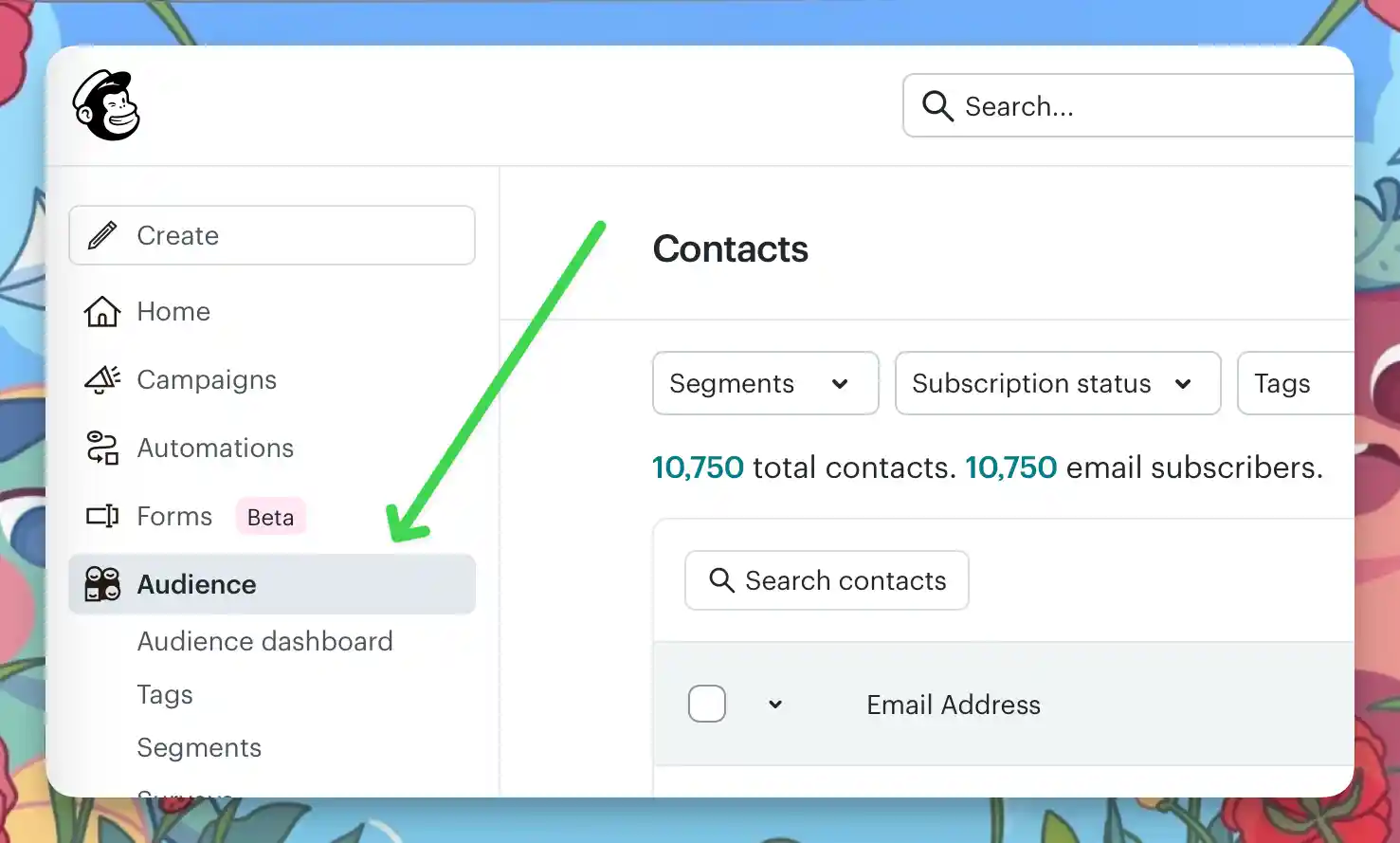
Open the audience
Sign in at login.mailchimp.com and choose the Audience you plan to migrate.
Step 2
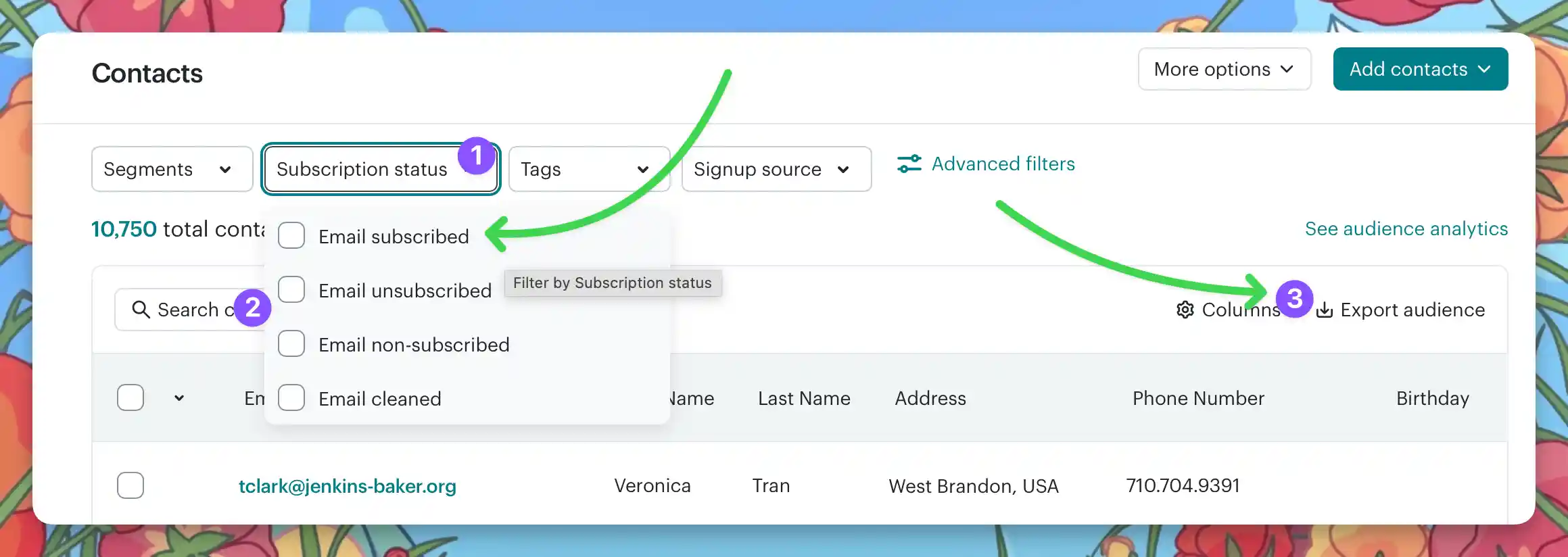
Export every subscription status
In the audience view, use the Subscription Status filter for each status (Subscribed, Unsubscribed, Non-subscribed, Cleaned) and click Export Segment. Mailchimp emails a ZIP containing a CSV per status.
Step 3
Document segments
Under Audience → Segments, export any segments you depend on. These CSVs act as reference snapshots when rebuilding logic in Bento.

Merge & clean
- Extract the ZIP and rename files clearly (for example
mailchimp-subscribed.csv,mailchimp-unsubscribed.csv). - Open each CSV, rename headers to Bento-friendly names (
email,first_name,tags, etc.). - Combine multiple tags using comma-separated values without spaces (
vip,customer). - Remove columns you do not need and strip trailing blank rows.
- Save each CSV separately so you can import suppression lists before active contacts.
Column map example
| Tags | Remove Tags | First Name | Last Name | |
|---|---|---|---|---|
| jesse@bentonow.com | customer, mql | lead | Jesse | Hanley |
After exporting
- Confirm you have CSVs for each subscription status (at minimum subscribed + unsubscribed).
- Store segment exports and automation screenshots with your migration folder.
- Plan to import unsubscribed contacts into Bento first, followed by active subscribers.
Troubleshooting
Missing data?
- Ensure you exported from the correct audience.
- Check the emailed ZIP and your download history.
- Large audiences may split into multiple ZIPs—download them all.
Cannot export?
- Only account owners/admins can export audience data.
- Try another browser or clear cached sessions.
- Contact Mailchimp support if export links remain disabled.
Mailchimp → Bento terminology
| Mailchimp term | Bento equivalent | What it means |
|---|---|---|
| Contact | Person | A contact record with full history |
| Audience | — | Bento uses one People table—segment with tags instead of multiple audiences |
| Tag | Tag | Labels used for segmenting and automation |
| Group | Tag or Segment | Rebuild groups as static tags or dynamic segments in Bento |
| Merge field | Field | Additional columns (first_name, plan, etc.) |
| Campaign | Broadcast | One-off email sends |
| Automation | Flow | Bento Flows handle triggers, waits, and branching |
| Event tracking | Event | Bento automatically tracks clicks/visits once the script is installed |
Audience consolidation
Final checklist
- Screenshot automations and key settings before making changes.
- Import unsubscribed contacts into Bento first, then active subscribers.
- Validate counts, fields, and tags after each import.
- Keep original ZIP/CSVs until you are confident everything matches.
Migration support
Keep your original exports archived until you have verified counts, tags, and flows inside Bento. Re-imports are easy when your data is tidy.
Need the original Markdown? Open raw file