Shopify + Bento
Pipe Shopify revenue, customers, and on-site activity straight into Bento so automations always have fresh commerce data.
Pipe Shopify revenue, customers, and on-site activity straight into Bento so automations always have fresh commerce data.
Quick facts
- Vendor
- Shopify
- Category
- second party
- Tags
- commerce, ecommerce, storefront
Requirements
- Active Bento workspace with permission to install apps
- Shopify store where you can authorize the Bento connector
Overview
Bento’s Shopify integration keeps orders, customers, and lifetime value in sync without touching theme code. Once the connector is installed, Shopify events arrive inside Bento as soon as they occur so you can trigger journeys, update subscriber attributes, and report on true purchase behavior.
Requirements
- A Bento workspace with admin access to the Apps area
- The Shopify store URL you plan to connect (for example
storename.myshopify.com)
Installation Steps
1. Start the Shopify connector
- Sign in to Bento and open the workspace you want to connect.
- Navigate to System → Apps → Shopify and click Install.
- If you’re already storing a
team_idin localStorage, the button deep links to/account/teams/{team_id}/oauth/shopify_accounts/new. Otherwise, follow the in-app prompt to pick your team first.
2. Configure Shopify settings
Add the Shopify store URL plus the Bento site that should receive the data. The connector uses this information to route events to the right workspace. Click Connect to hand off to Shopify.
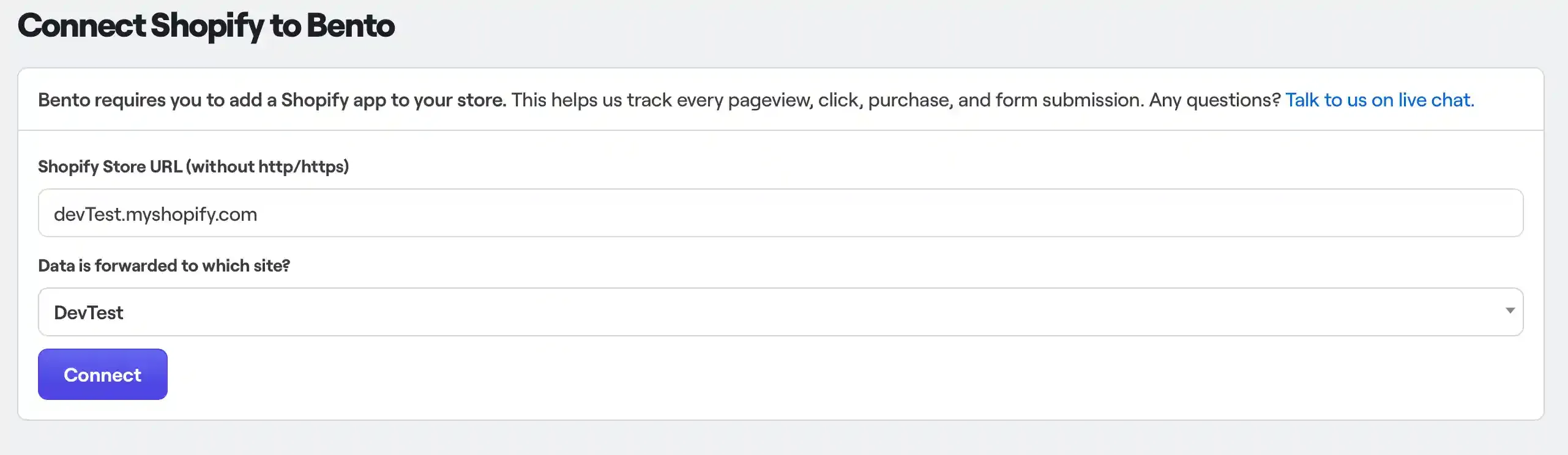
3. Approve the Shopify app
Shopify opens an approval screen that confirms the permissions Bento is requesting. Click Install app to complete the OAuth flow.
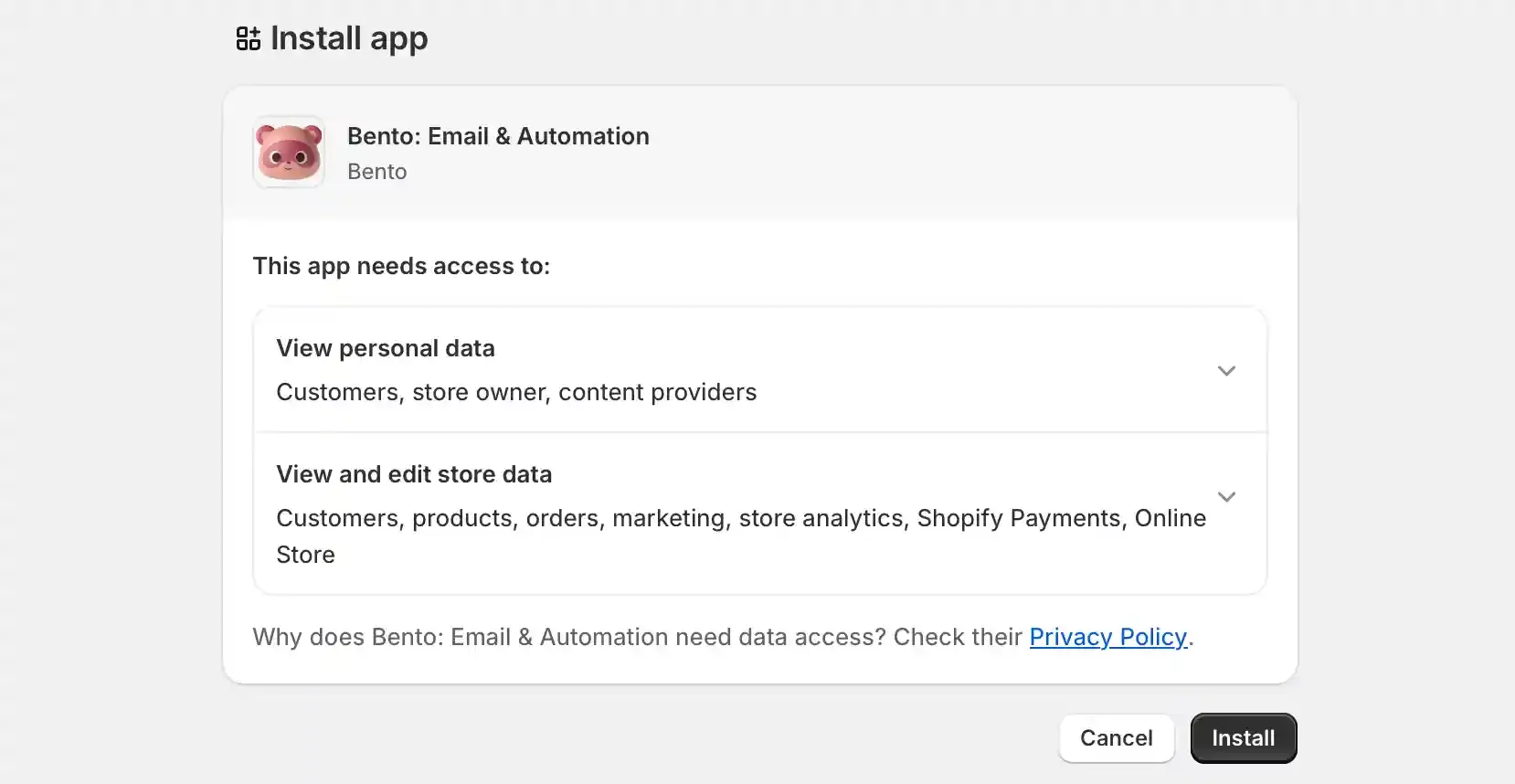
4. Pick the Bento site
After Shopify redirects back to Bento, choose the target site inside the connector screen and click Save. Bento immediately starts listening for Shopify webhooks on that site.

How the connection works
Whenever an order, checkout, or customer update happens in Shopify, Bento receives a webhook payload that includes the event type, cart items, total value, and currency. Those events show up under Events → Shopify in Bento and are available to:
- Trigger automations whenever a customer purchases, abandons a cart, or updates their profile.
- Update subscriber fields such as
lifetime_value, product tags, or cohorts in real time. - Power reporting and revenue attribution dashboards without exporting CSVs.
Because Bento handles the normalization, you can rely on the same event names and fields in every automation, even if your Shopify theme or app stack changes later.
Need the original Markdown? Open raw file