Stripe + Bento
Keep Stripe charges, refunds, and customer updates flowing into Bento so automations always know a subscriber's real-time value.
Keep Stripe charges, refunds, and customer updates flowing into Bento so automations always know a subscriber's real-time value.
Quick facts
- Vendor
- Stripe
- Category
- second party
- Tags
- payments, commerce, billing
Requirements
- Bento workspace with access to the Apps area
- Stripe account where you can authorize Backpack Internet (Bento)
Overview
The Stripe connector translates key payment lifecycle events into Bento activities:
- Event tracking for charges, refunds, subscriptions, and invoices
- Data management so fields like
lifetime_value, currency, and plan stay current - Flow triggers that let you kick off journeys whenever a Stripe event arrives
Requirements
- A Bento site you want to associate with Stripe data
- A Stripe account with permissions to approve third-party applications
Installation Steps
1. Start the OAuth flow
Open Bento → System → Apps → Stripe and click Install Stripe App. If Bento already knows your team_id, the button deep links to /account/teams/{team_id}/oauth/stripe_accounts/new. Otherwise, start from the Teams page, pick the workspace, and launch the install from there.
2. Sign in to Stripe
If you’re not already authenticated, Stripe prompts for your credentials before continuing the authorization flow.
3. Approve Backpack Internet (Bento)
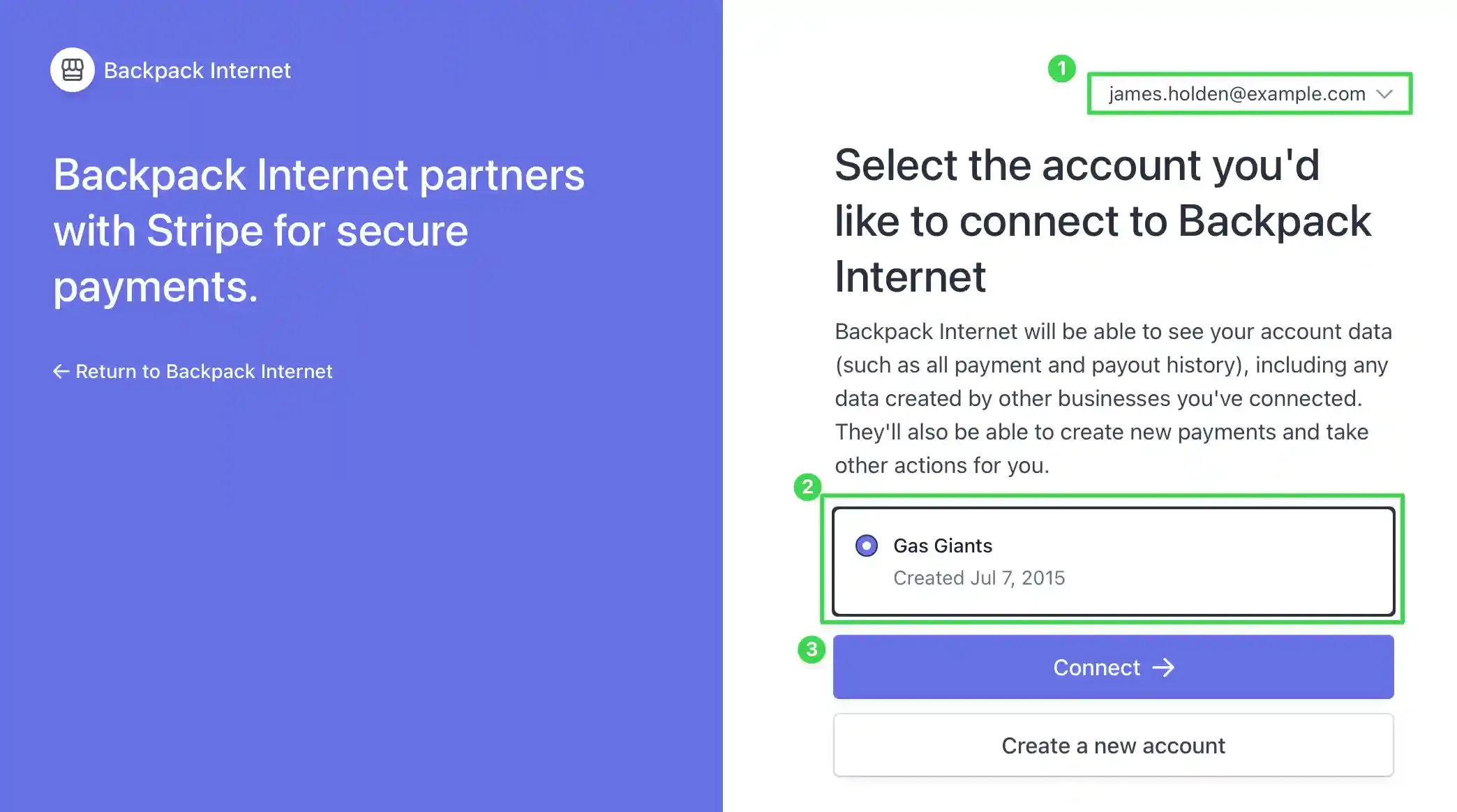
Stripe shows the Backpack Internet (Bento) application along with a list of accounts you can connect. Pick the correct Stripe account and click Connect.
4. Review the connection inside Bento
After Stripe redirects back, Bento displays the connected site, the Stripe account, and quick actions to edit settings or disconnect.

5. Adjust connection settings (optional)
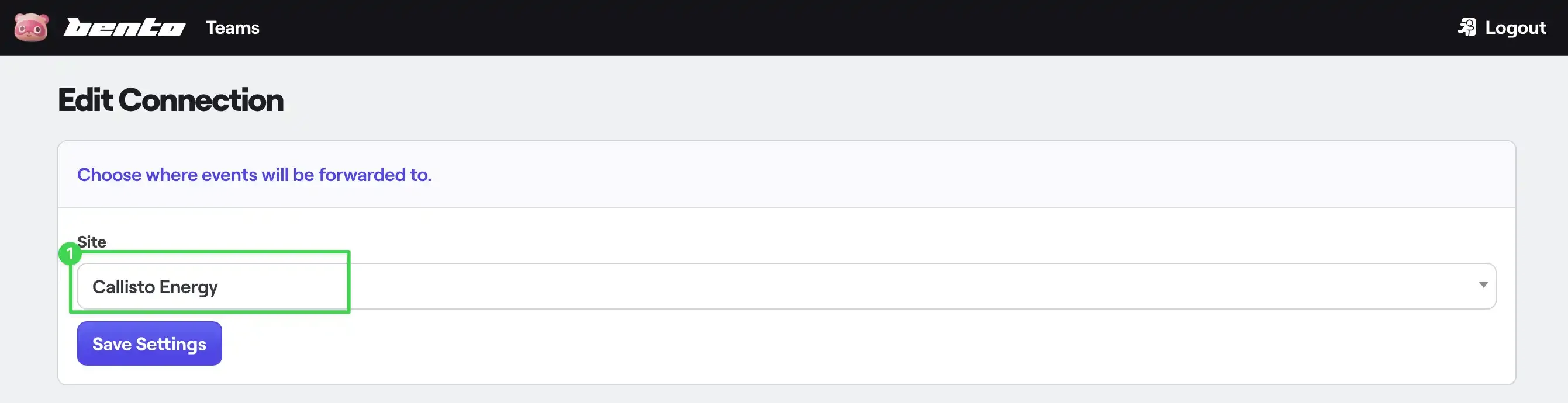
Need to route events to a different Bento site? Click Settings and choose a new site from the dropdown. The change takes effect immediately for all incoming Stripe events.
How the connection works
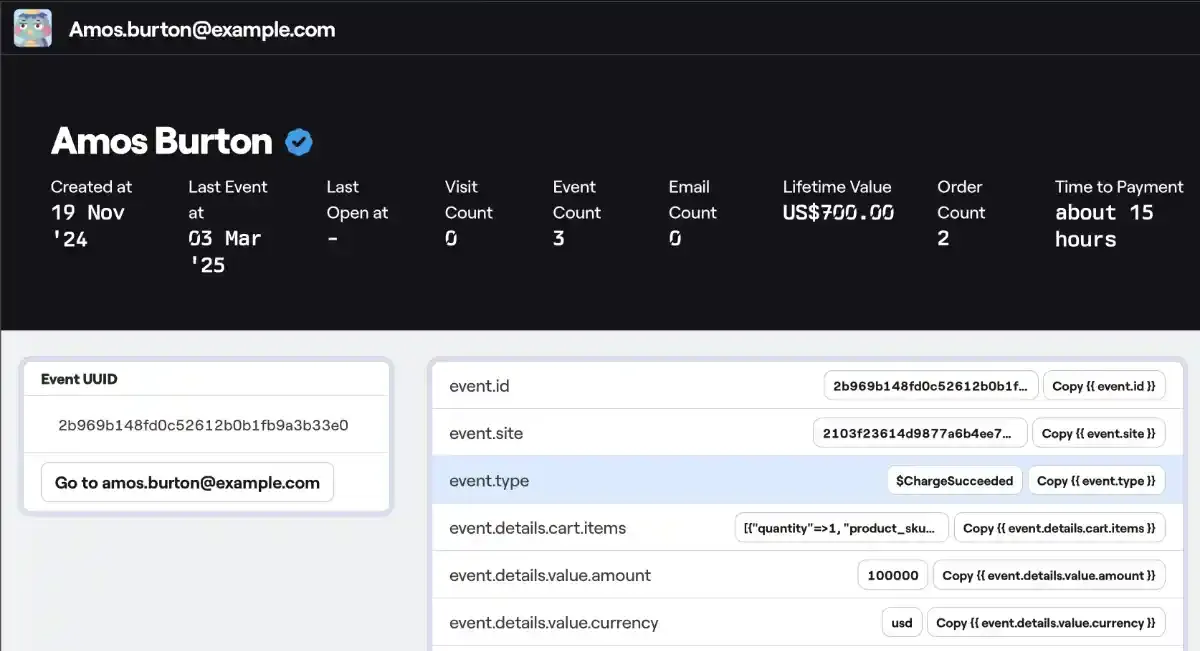
Stripe sends Bento a webhook payload for each event you subscribe to—charges, invoices, subscriptions, customer updates, and more. The connector normalizes those payloads and emits events such as $ChargeSucceeded, $InvoicePaymentFailed, or $CustomerUpdated that you can use to:
- Trigger automations the moment a payment succeeds or fails.
- Update lifetime value and other subscriber fields in real time.
- Branch journeys based on plan, MRR, or products inside the Stripe payload.
Need the original Markdown? Open raw file