WordPress + Bento
Use Bento's WordPress plugin to track WooCommerce orders, LearnDash progress, form submissions, and lifetime value across your site.
Use Bento's WordPress plugin to track WooCommerce orders, LearnDash progress, form submissions, and lifetime value across your site.
Quick facts
- Vendor
- WordPress
- Category
- second party
- Tags
- wordpress, cms, ecommerce
Requirements
- Bento workspace with API keys and site UUID
- WordPress admin access (latest version recommended)
- Any supported plugin (WooCommerce, LearnDash, SureCart, Elementor Forms, etc.)
Overview
Bento’s WordPress plugin unifies event tracking, subscriber management, and lifetime value so you always know what visitors do inside WordPress. The connector automatically tracks:
- WooCommerce + WooCommerce Subscriptions
- LearnDash
- Easy Digital Downloads
- Elementor Forms, WPForms, Bricks Builder forms, ThriveLeads, SureCart, and more
Requirements
- Bento publishable + secret API keys and the site UUID you want to connect.
- Latest WordPress release on a staging environment for initial testing.
- Any optional plugin whose events you want Bento to monitor.
Recommendation: Install and test the plugin on staging first to confirm compatibility.
Installation Steps
1. Download the plugin
Grab the latest ZIP from the bento-wordpress-sdk repository.
2. Install inside WordPress
Upload the ZIP via Plugins → Add New → Upload Plugin and activate it.
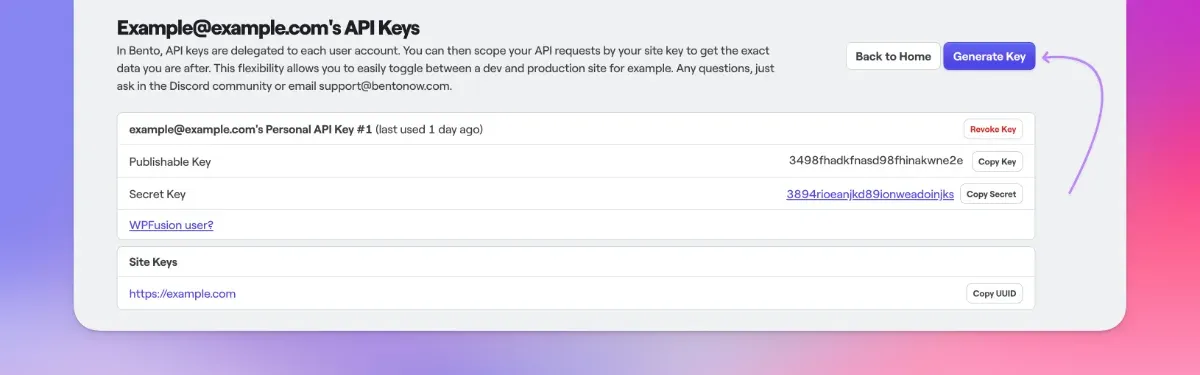
3. Generate Bento keys
If you haven’t already, visit the Bento Teams page and create API keys for the target site.
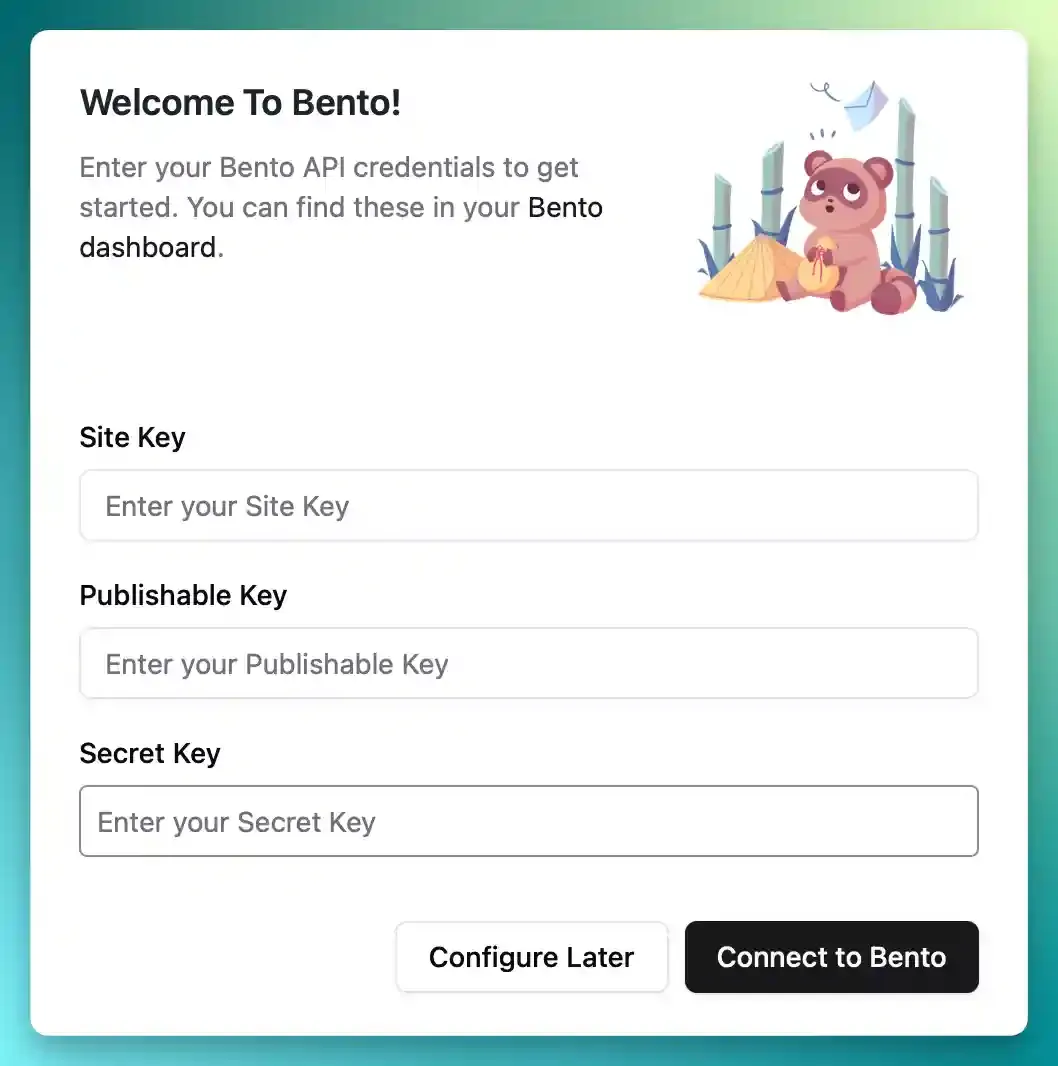
4. Connect the plugin
Enter the keys into the plugin settings and click Connect to Bento. Successful connections reveal additional configuration panels.
5. Optional: Enable tracking & logging
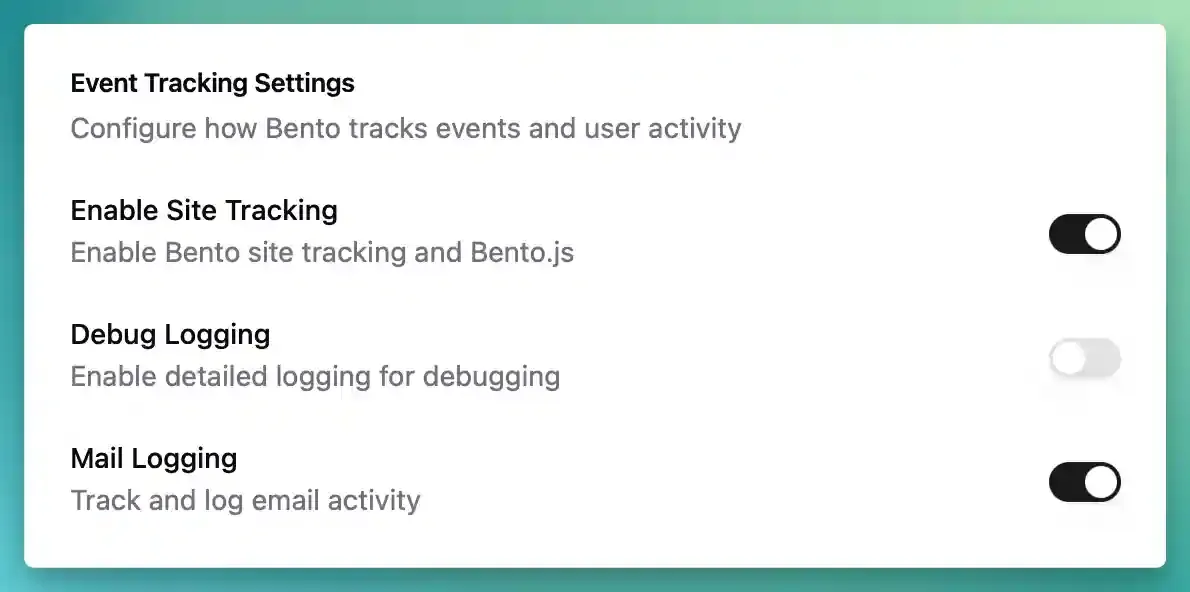
- Turn on site tracking to inject Bento’s personalized script (excludes caching—see below).
- Enable debugging or email logging only while testing; remember to clear the log afterwards.
6. Optional: Transactional email
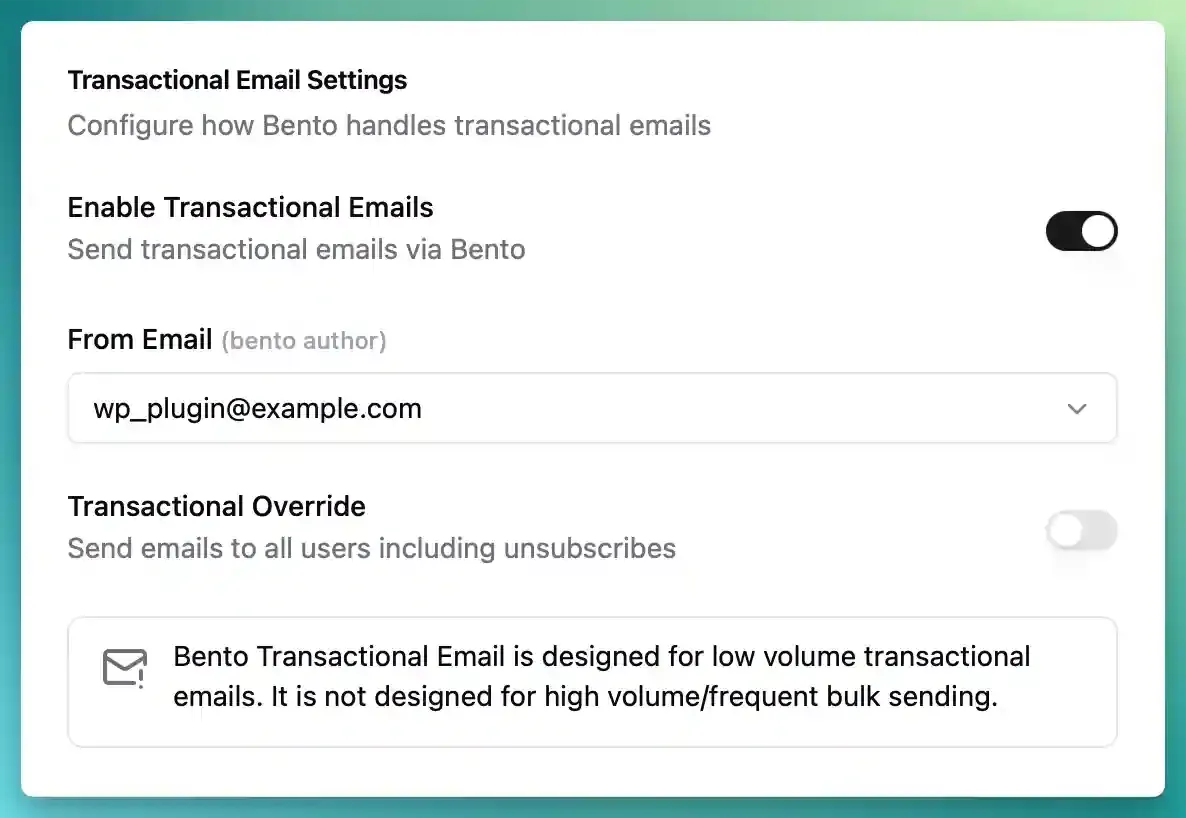
- Designed for low-volume transactional sends (order confirmations, password resets, etc.).
- Pick an existing Bento author as the “from” address.
- Sending to unsubscribed users is supported but lowers deliverability if abused.
7. Integration status panel
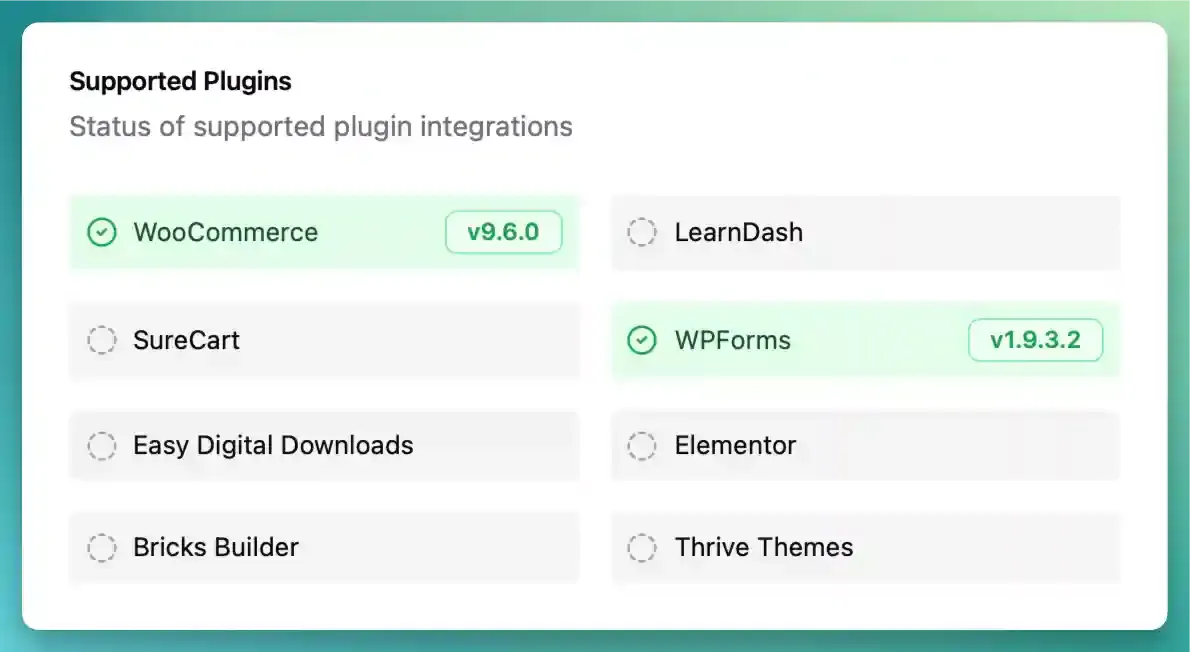
The plugin automatically detects supported plugins and shows a green check when they’re active. Gray entries indicate missing or unsupported integrations.
8. Caching guidance
Bento’s script is dynamic and personalized. When using caching plugins (WP Rocket, SuperCache, etc.):
- Exclude the Bento script from caching.
- Make sure edge caches respect per-user personalization.
Event Tracking Reference
WooCommerce
| Event | Description |
|---|---|
$OrderPlaced | Fires when an order is placed; updates lifetime value. |
$OrderRefunded | Fires on full or partial refunds; deducts LTV. |
$OrderCancelled | Order moves to cancelled. |
$OrderShipped | Order moves to completed. |
WooCommerce Subscriptions
| Event | Description |
|---|---|
$SubscriptionCreated | New subscription created (any status). |
$SubscriptionActive | Subscription becomes active (post-trial). |
$SubscriptionCancelled | Admin cancels the subscription. |
$SubscriptionExpired | Term reaches the end date. |
$SubscriptionOnHold | Status switches to on-hold. |
$SubscriptionTrialEnded | Trial wraps up. |
$SubscriptionRenewed | Renewal payment succeeds. |
SureCart
| Event | Description |
|---|---|
$CheckoutConfirmed | Checkout completed/paid; includes checkout + user metadata. |
Easy Digital Downloads
| Event | Description |
|---|---|
$DownloadPurchased | Payment completed for a download. |
$DownloadDownloaded | File download triggered. |
$DownloadRefunded | Refund processed (partial or full). |
LearnDash
Large catalog of course/lesson actions:
$CourseCompleted,$LessonCompleted,$TopicCompleted,$QuizCompleted$UserEnrolledInCourse,$UserEnrolledInGroup,$UserPurchasedCourse,$UserPurchasedGroup$Subscriptionstyle events for certificates, drip content, and “not completed” reminders
Form Builders
- Elementor Forms / WPForms / Bricks Builder – events use the form name so you can build journeys per form.
- ThriveLeads – events follow
$thrive.optin.{form_id}(e.g.,$thrive.optin.fancy-optin-shortcode-form-v6n9w1).
Testing Events
- Complete an action (checkout, form submission, course completion, etc.).
- Open Bento → System → Events and confirm the event appears with expected data.

User History & Lifetime Value

Use Bento’s subscriber profile to:
- Review purchases and subscription status.
- Inspect detailed event timelines.
- Drill into form submissions and other contextual data.
Subscriber Management

- Automatically add new WordPress users or opt-ins as Bento subscribers.
- Tag users by form, product, or course to build granular segments.
- Leverage Bento forms and automations to nurture every cohort without custom code.
FAQ
Does the plugin auto-update?
No. Download the latest release and upload it manually whenever updates are published.
How do I get support?
- Email: support@bentonow.com
- Discord: Bento Community
Need the original Markdown? Open raw file