Bricks Builder + Bento
Send every Bricks Form submission in WordPress straight into Bento so you can trigger automations, update subscribers, and fight spam without extra plugins.
Send every Bricks Form submission in WordPress straight into Bento so you can trigger automations, update subscribers, and fight spam without extra plugins.
Quick facts
- Vendor
- Bricks Builder
- Category
- second party
- Tags
- wordpress, forms, automation
Requirements
- WordPress site running the Bento plugin with API keys configured
- Bricks Builder (v1.9+ recommended) with permission to edit forms
- Ability to set Attribute Names on Bricks form fields
- Email field on every form so Bento can identify the subscriber
Overview
The Bento WordPress plugin automatically listens for Bricks form submissions. When someone fills out your form:
- All field data is sent to Bento as an event so you can trigger flows or add tags.
- Custom fields are captured—no manual webhook mapping required.
- You can manage every form across your site without installing extra add-ons.
Prerequisites
- Install and activate the Bento WordPress plugin, then add your API keys (see the WordPress integration guide).
- Build or edit a form in Bricks Builder.
- Make sure at least one field captures the visitor’s email address.
Configure Bricks fields
- In each field’s Attribute Name setting, enter the identifier you want Bento to store (e.g.,
first_name,company,budget). - Reuse Bento’s existing field names when possible so data stays consistent across forms.
- The email field should always use
emailas its Attribute Name.
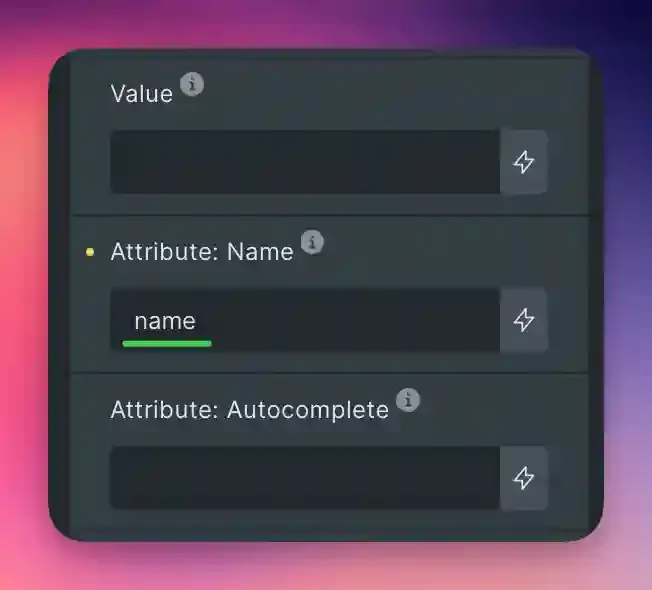
Friendly tip: Attribute Names become the keys you’ll see inside Bento events. Clear names make filtering and automation rules much easier later.
Set the form action to “Custom”
- Scroll to Actions after submit inside the Bricks form settings.
- Add Custom to the list (this is the only required action for Bento).
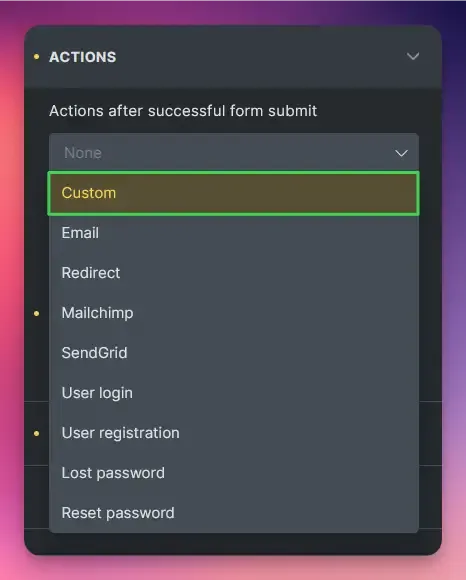
- Save the form—no additional configuration panels or code snippets are needed. Bento detects the submission automatically.
Testing
- Publish the page (or use the Bricks preview).
- Submit the form with a test email.
- In Bento, open Events or the subscriber profile to confirm the submission arrived.
Limitations & tips
- Bricks only allows one Custom action per form. Avoid stacking multiple custom listeners from different plugins unless you understand their order of execution.
- Standard fields, custom fields, conditional steps, and multi-step forms are supported as long as they eventually submit data.
- Use Bricks’ built-in honeypot to cut down spam before it reaches Bento.

Warning: If another plugin is also watching the Custom action it may process the same submission. Test thoroughly on staging before rolling out to production.
Extra details
- Bento stores every submission as an event, so you can trigger flows, update custom fields, or branch logic with zero extra wiring.
- If you rename or add form fields later, Bento automatically ingests them—no remapping required.
- You can run unlimited Bricks forms across your site; the Bento listener runs globally.
Quick recap
- Install/configure the Bento WordPress plugin.
- Give every form an email field and set Attribute Names for any data you care about.
- Set Actions after submit → Custom inside Bricks.
- Publish the page and test—Bento takes care of the rest.***
Need the original Markdown? Open raw file